
RMM Labs
Integrations 3 min read 28 September 2026 By Fred

Connect Odoo to Xcellerate OPS: invoices straight into Odoo

How to push invoices from Xcellerate OPS to Odoo automatically and bring existing Odoo invoices and quotations in with a manual import.

Connect Odoo to Xcellerate OPS: invoices straight into Odoo

Connect Odoo to Xcellerate OPS and every invoice you send from OPS appears in Odoo as a customer invoice, automatically. It works with Odoo on odoo.com and with a self-hosted Odoo. This guide is for admins of IT MSPs and service businesses that keep their books in Odoo.

TL;DR

  • You need your Odoo URL, database name, a login and an API key, plus the admin role in OPS.
  • When an invoice moves from draft to sent, OPS creates it as a customer invoice in Odoo.
  • Check the VAT in Odoo after the first sync: OPS does not send VAT codes.

Before you start

  • You are an admin of your OPS workspace.
  • Your Odoo is reachable over HTTPS from the internet and has the Invoicing or Accounting app. To import quotations, you also need the Sales app.
  • You know the database name and the login (user e-mail or username) of the Odoo user for the integration.
  • That user can create invoices and partners, and read sale orders.
  • External e-invoicing is not switched on in OPS. While it is, the Odoo integration does not apply.

Connect Odoo in 6 steps

Step 1: create an API key in Odoo

In Odoo, create an API key for the integration user. You usually find this in the user's Preferences, under Account Security, with New API Key. The exact menu can differ between Odoo versions.

Step 2: open the integrations board in OPS

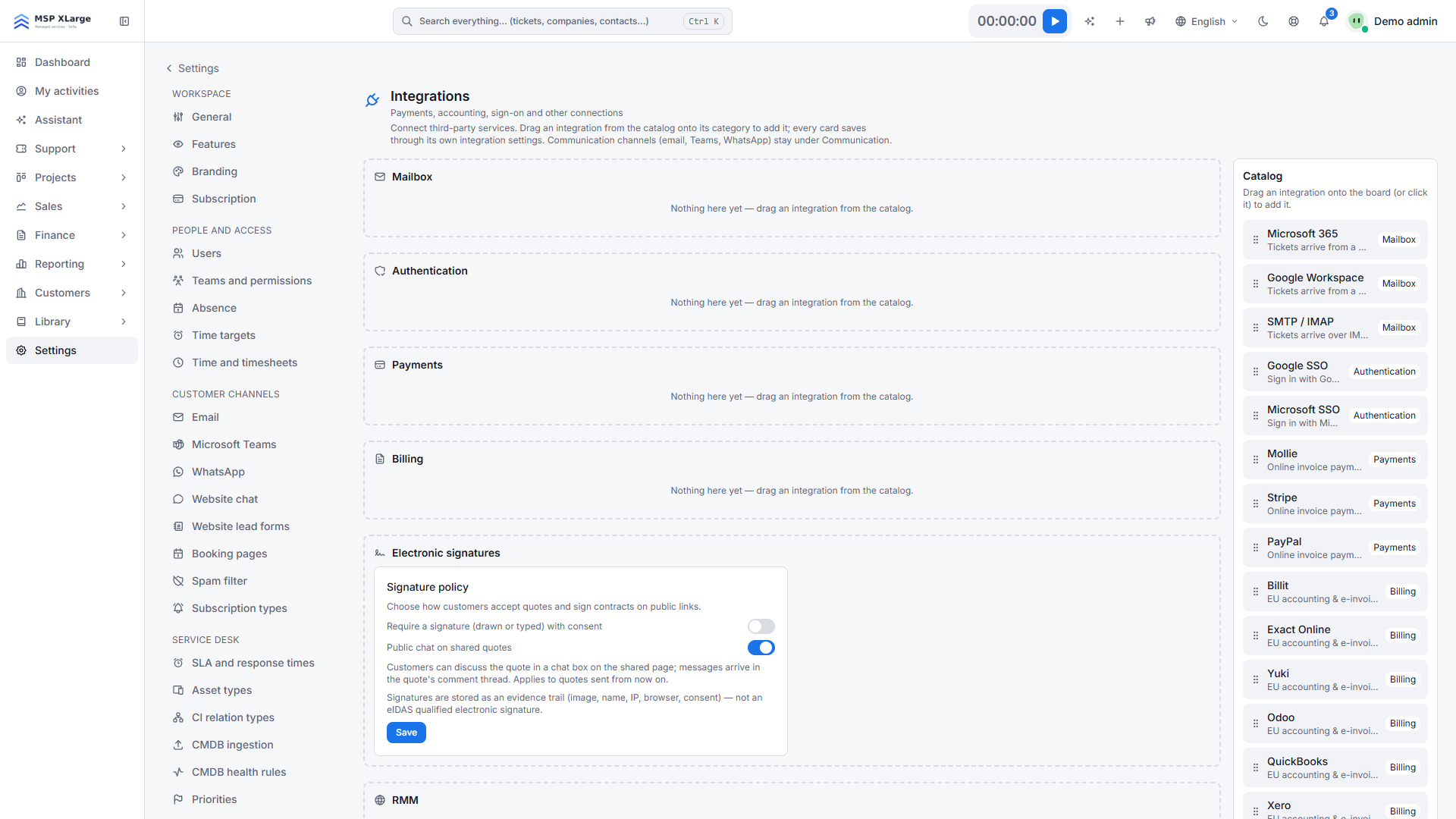
Go to Settings → Integrations. If there is no Odoo card in the Billing column yet, add Odoo from the Catalog.

Integrations board in Xcellerate OPS settings The integrations board with empty categories (Mailbox, Authentication, Payments, Billing) and the catalog of available integrations on the right.

Step 3: enter your details

On the Odoo card, fill in URL (for example https://mycompany.odoo.com), Database, Login and API key, then click Save. You should see "Odoo settings saved."

Step 4: test the connection

Click Test connection. Success reads "Odoo connection successful (uid N)." where N is your Odoo user's ID.

Step 5: make Odoo the push target

Click Use for invoice push. The card shows the Push target badge.

Step 6 (optional): import existing documents

Under Manual import from Odoo, set a From date. Click Import companies & invoices and/or Import quotes.

What happens after you connect

  • Automatic push. When an invoice moves from Draft to Sent, OPS creates a customer invoice in Odoo with the customer, invoice date, due date, the OPS invoice number as reference and the lines (description, quantity, net unit price).
  • Customers. OPS looks up the partner by exact name. If there is none, OPS creates it as a company, with VAT number and e-mail.
  • Status on the invoice. Each invoice shows whether it synced, with a retry button.
  • Manual import. Customer invoices come in with their paid status. Quotes come from Odoo sale orders; confirmed orders are marked as accepted.
  • Quotes from OPS are never pushed to Odoo.

Good to know

  • Check the VAT after the first sync. OPS sends the lines without VAT codes. Create one test invoice first and check the VAT treatment in Odoo before you invoice at full speed.
  • New partners are always created as companies, even for a private person. Adjust them in Odoo if needed.
  • Imports are summary-level: each document becomes one line at the total excluding VAT, with 21% VAT assumed.
  • Only one accounting provider receives invoices from OPS at a time. Imported invoices are not pushed back to Odoo.
  • To stop sending invoices to Odoo, click Stop invoice push.
  • After saving, the API key is never shown again. URL, database and login stay visible.

Troubleshooting

OPS uses Odoo's standard JSON-RPC endpoint (your URL followed by /jsonrpc).

  • Odoo authentication failed — check database, login and API key. on Test connection: check the database name, the login and the API key.
  • Odoo authentication failed. or Odoo RPC error during a push or import: Odoo rejected the request. Check that the key is still valid and that the user has the rights listed above.
  • Configure this provider first. or Configure and connect this provider first.: save your details and test the connection first.
  • Import failed: <error>: read the error, fix the cause in Odoo and run the import again.

Read more about EU integrations in OPS and sales and billing. No workspace yet? Get started for free, then connect Odoo.

Frequently asked questions

Does this work with a self-hosted Odoo?
Yes, as long as your Odoo is reachable over HTTPS from the internet and has the Invoicing or Accounting app.
Are quotes from OPS sent to Odoo?
No. Only invoices are pushed, when they move from draft to sent. You can import Odoo quotations into OPS manually.
What about VAT on pushed invoices?
OPS does not send VAT codes with pushed invoices. Check the VAT on your first synced invoice in Odoo.
Sources: Verified against the Xcellerate OPS source code by the product team on 2026-09-28. Feature pages: https://rmmlabs.io/en/products/ops/features/integrations-eu; https://rmmlabs.io/en/products/ops/features/sales-billing. Screenshots: real captures of the Xcellerate OPS demo workspace, Sep 2026.

Ready to solve time registration compliance?

Xcellerate OPS covers Belgian 2027 time registration requirements out of the box — no extra module needed.

Related articles