
RMM Labs
Integrations 4 min read 28 September 2026 By Fred

Connect Mollie to Xcellerate OPS: let customers pay invoices online

With your own Mollie API key, every sent invoice in Xcellerate OPS gets a pay link. The money lands with you and the invoice switches to Paid automatically.

Connect Mollie to Xcellerate OPS: let customers pay invoices online

Connect your own Mollie account to Xcellerate OPS and your customers can pay sent invoices online, with the money landing directly in your account. This guide is for admins of MSPs and service businesses who want to get paid faster without chasing bank transfers.

TL;DR

  • Paste a Mollie API key (test or live) under Integrations → Payments and press Save.
  • Every invoice with status Sent then gets a secure pay link. Your customer pays the full total with the methods you enabled in Mollie.
  • The invoice switches to Paid automatically once Mollie confirms. Run one test payment, because OPS doesn't check the key when you save it.

Before you start

  • You are a workspace admin in OPS. Only admins can set up payment integrations.
  • You have a Mollie business account, with the payment methods you want to offer (for example iDEAL, Bancontact or cards) enabled in the Mollie dashboard.
  • You invoice from OPS itself. Payment links aren't available while an external e-invoicing platform replaces the built-in invoicing.

Step 1: Copy your API key in Mollie

In the Mollie dashboard, go to Developers → API keys. Copy a test key (starts with test_) if you want to try things out first, or a live key (starts with live_) to accept real payments. You don't need to set up a webhook in Mollie. OPS takes care of that for every payment.

Step 2: Open the Payments column in OPS

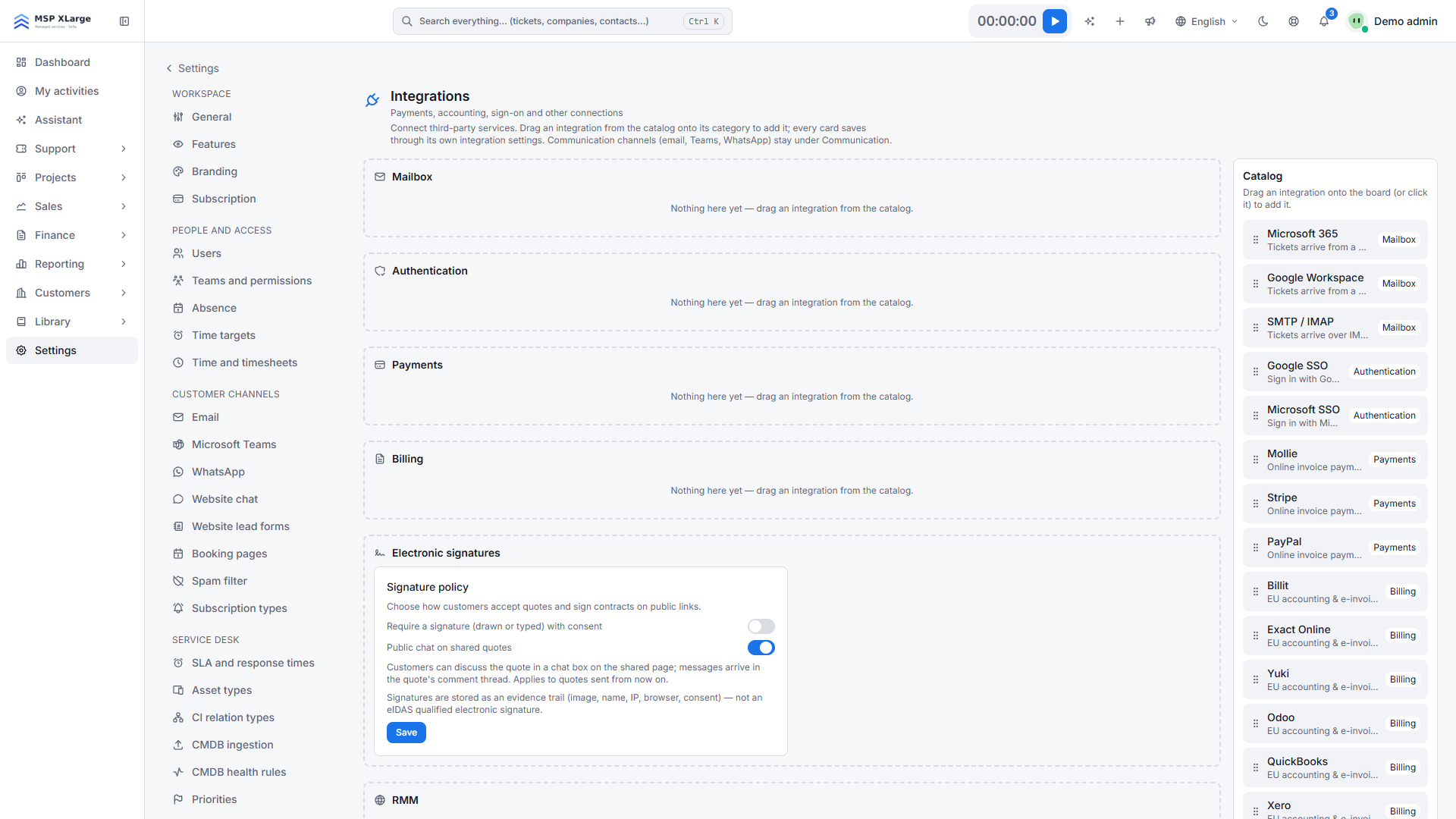
In OPS, go to Settings → Integrations. The board groups integrations by category, with the catalog of available integrations on the right. Mollie appears there with the hint Online invoice payments.

The Integrations board in Xcellerate OPS settings with empty categories and the integrations catalog The Integrations board with empty Mailbox, Authentication, Payments and Billing categories and the catalog on the right.

No Mollie card under Payments yet? Click Mollie in the catalog or drag it onto the Payments column. The card reads: "Your own Mollie API key — clients pay sent invoices online and funds settle in your account."

Step 3: Paste the key and save

Paste the key into the field (placeholder live_… / test_…) and press Save. You'll see "Mollie key saved — sent invoices now offer online payment." The status pill changes from Not configured to Active, and the field now shows "•••• saved — leave blank to keep". The key itself is never shown again.

Step 4: Run a test payment

OPS doesn't validate the key when you save it, so test it before you rely on it:

  1. Finalize an invoice so its status is Sent.
  2. On the invoice detail page, look for "Pay online:" with the link and a Copy link button.
  3. Open the link, choose Mollie and complete the payment.
  4. Check that the invoice now shows Paid.

Tested with a test key? Paste your live key, save again and you're ready.

What happens after you connect

  • Every invoice with status Sent gets a link to a public payment page. The link belongs to that invoice only, and your customer doesn't need a login.
  • The payment always covers the full invoice total, in the invoice currency. Your customer sees the description Invoice <ref> — <your company>.
  • OPS creates the payment in Mollie. Mollie reports the result back, and OPS double-checks the status with Mollie itself.
  • When the payment succeeds, the invoice switches to Paid. Failed, cancelled or expired payments are recorded as failed. All recorded payments are listed on the invoice detail page.
  • Paid and voided invoices show their status instead of a pay button.

Good to know

  • The money settles in your own Mollie account. It never passes through RMM Labs, and this key is separate from your OPS subscription.
  • Partial payments aren't supported. Customers always pay the full total.
  • You can run Mollie next to Stripe and PayPal. Each provider becomes its own button on the payment page.
  • Disable clears the stored key after you confirm. You'll see "Online payments disabled — invoices fall back to manual payment." Only then does the trash icon ("Remove from board") appear.

Troubleshooting

  • Your customer sees "The payment could not be started. Please try again later." The checkout couldn't be created. Usually the key is wrong or has been revoked. Paste the key again, save and run a test payment.
  • No pay link on the invoice. Check that the invoice has status Sent, that a payment provider is configured, and that you invoice from OPS itself.
  • The card says "Not applicable while external e-invoicing is enabled." Online payment links only work with the built-in invoicing in OPS.

Get paid faster

Want to see how quoting, invoicing and online payment fit together? Read more about sales and billing and our EU integrations. Ready to try it? Get started for free.

Frequently asked questions

Does the money go through RMM Labs?
No. Your customer pays through your own Mollie account and the money settles directly with you. The key is separate from your OPS subscription.
Can a customer pay an invoice in instalments?
No. Every payment covers the full invoice total, in the invoice currency.
Do I need to set up a webhook in Mollie?
No. OPS passes the right address to Mollie with every payment. You only need to paste your API key.
Sources: Verified against the Xcellerate OPS source code by the product team on 2026-09-28. Feature pages: https://rmmlabs.io/en/products/ops/features/integrations-eu; https://rmmlabs.io/en/products/ops/features/sales-billing. Screenshots: real captures of the Xcellerate OPS demo workspace, Sep 2026.

Ready to solve time registration compliance?

Xcellerate OPS covers Belgian 2027 time registration requirements out of the box — no extra module needed.

Related articles