Connect your Google account to Xcellerate OPS and your Google Calendar meetings appear behind your timesheet, one click away from a time entry. Allow writing, and your planned work lands in Google Calendar or Google Tasks, while what you complete or move there flows back to OPS. For MSP admins who set it up once and technicians who then connect themselves.
TL;DR
- Admin, once: add the calendar and task scopes to the OAuth consent screen of the Google sign-in, and enable the Calendar and Tasks APIs.
- Each user: profile → Connected calendar → Connect Google, then Allow writing.
- Sync runs every 5 minutes. Only "done" and the date come back from Google, never titles.
Before you start
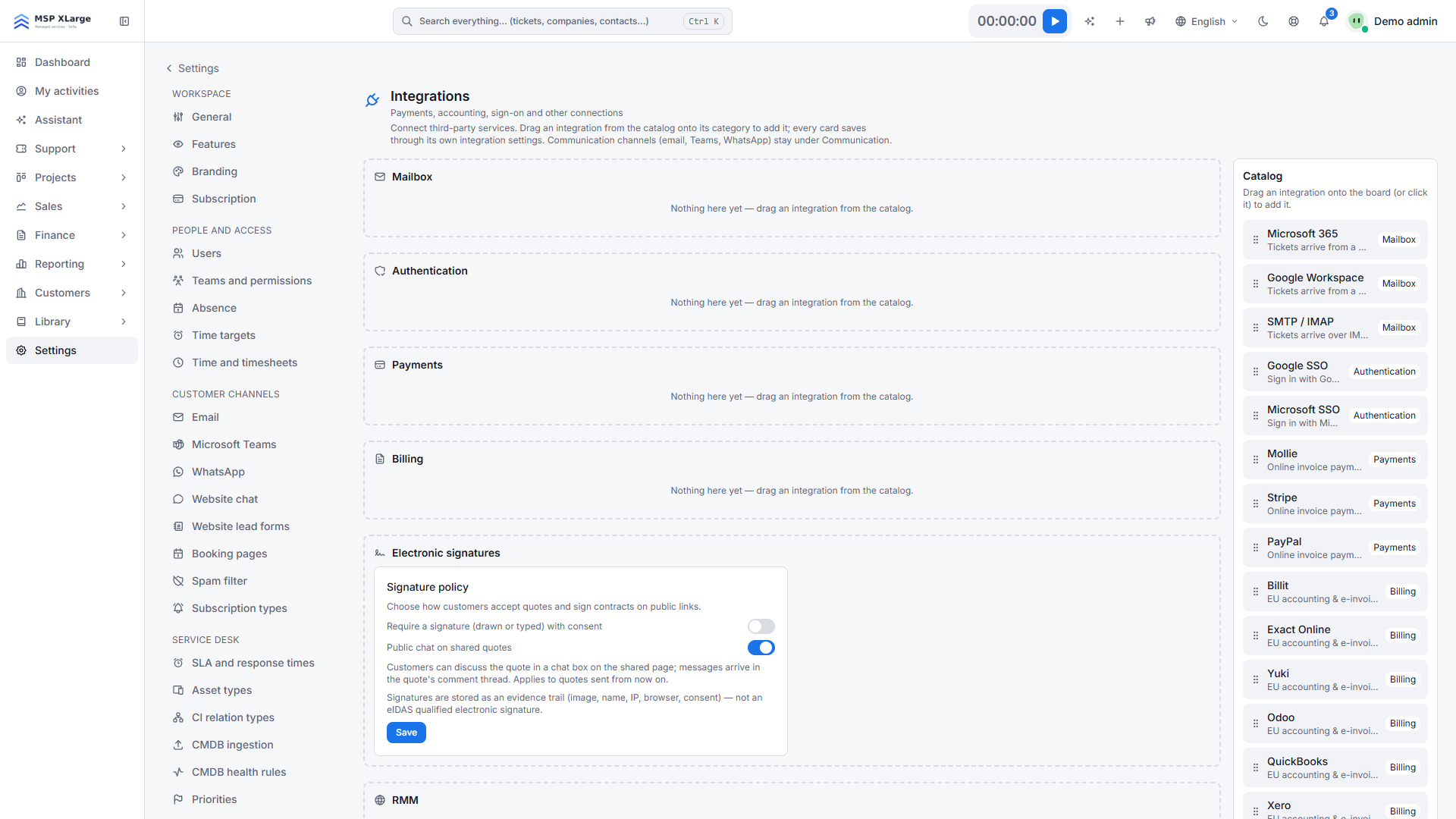
- Google single sign-on must be active for your workspace, with its own OAuth client (Settings → Integrations). The calendar connection reuses that client. Without it, Connected calendar does not appear.
- You need access to the Google Cloud project of that OAuth client.
- Each staff user (admin or technician) connects their own account. Nobody sees someone else's calendar.
Step 1 (admin): scopes and APIs
- In Google Cloud, open the project with the OAuth client you use for OPS sign-in.
- Add these scopes to the OAuth consent screen:
- read meetings:
openid, email, https://www.googleapis.com/auth/calendar.readonly
- sync planned work, also:
https://www.googleapis.com/auth/calendar.events, https://www.googleapis.com/auth/tasks
- Enable the Google Calendar API and the Google Tasks API in the same project.
No extra redirect URI is needed: consent returns on the sign-in callback already registered (https://auth.<platform-domain>/sso/google/callback).
Step 2 (each user): connect your account
- Open your profile and go to Connected calendar.
- Click Connect Google, choose your account and accept. OPS always shows Google's consent screen and account picker.
Step 3: allow writing and choose targets
- Click Allow writing and consent again.
- Under Your planned work, in your calendar and task lists, pick a target for each kind (Project tasks, CRM follow-ups, Ticket reminders) or choose Do not sync:
- Google Calendar: pick a calendar (the primary one by default; only calendars you can write to are listed) and a pop-up reminder (none, at the time, 15 min, 30 min, 1 h or 1 day).
- Google Tasks: pick a list, or keep the default. OPS then creates a list "Xcellerate OPS".
- Click Save or Sync now.
What happens after you connect
- Meetings (read): the week on screen is read from your primary calendar, cached for about 5 minutes and never stored. Cancelled and "free" events are hidden.
- Planned work (to Google): only your dated items. Project tasks become all-day events (free). Your open CRM tasks and planned calls or meetings become timed entries (busy). Checklist reminders on your tickets become 15-minute slots. OPS writes the title, notes and a link back.
- Google Tasks only stores a date. For timed items, OPS writes the time into the notes ("At HH:MM").
- Changes (back to OPS): only "done" and the date, never titles. From the calendar, a moved date comes back; a deleted event is let go. The newest change wins per field.
- Timing: every 5 minutes, on Save, on Sync now, and when you open the page and the last sync is stale.
- Done in OPS: completed in Google Tasks; the calendar event stays. Date removed, reassigned or deleted in OPS: removed in Google.
Good to know
- One calendar connection per person, Google or Microsoft. Only for workspaces that use Google sign-in.
- A timed item moved in Google Tasks comes back as a day and keeps its OPS time of day.
- An item deleted in Google is not recreated. Un-completing a task in Google Tasks does not reopen it in OPS.
- Changing the target of a kind removes the OPS items from the old target.
- Disconnect deletes nothing in Google. Connecting a different account resets your sync choices.
Troubleshooting
- "The calendar could not be connected. Ask your administrator whether the calendar permission is on the sign-in registration." Check the scopes from step 1 on the consent screen.
- "The connection has expired — connect again." Google refused access (revoked or expired). Connect again.
- Allow writing keeps showing. Google did not grant
calendar.events and tasks. Add them and consent again.
- "Could not load the lists." or "Synced: X sent, Y taken over, Z failed." The second is the result of Sync now; a failed run shows Google's message per kind.
See how OPS brings time and billing together, and browse our other EU integrations.
Get started for free, connect Google in your profile and turn meetings into time entries with one click.