Integrations28 Sept 2026
Step by step: enable the Gmail API in Google Cloud, create an OAuth client and connect your support mailbox to Xcellerate OPS.
Does your team run on Google Workspace? Connect your Gmail mailbox, for example support@, to Xcellerate OPS and every new email becomes a ticket. Replies thread onto the right ticket and your technicians answer from that same mailbox. The connection uses the Gmail API with modern authentication, so no IMAP or SMTP password is needed.
TL;DR
- Enable the Gmail API in Google Cloud, create an OAuth client and add the redirect URI shown in OPS.
- Enter the client ID, client secret and mailbox address in OPS, then click Connect mailbox while signed in as the mailbox itself.
- OPS checks for new mail every 5 minutes. Processed emails move to Gmail Trash.
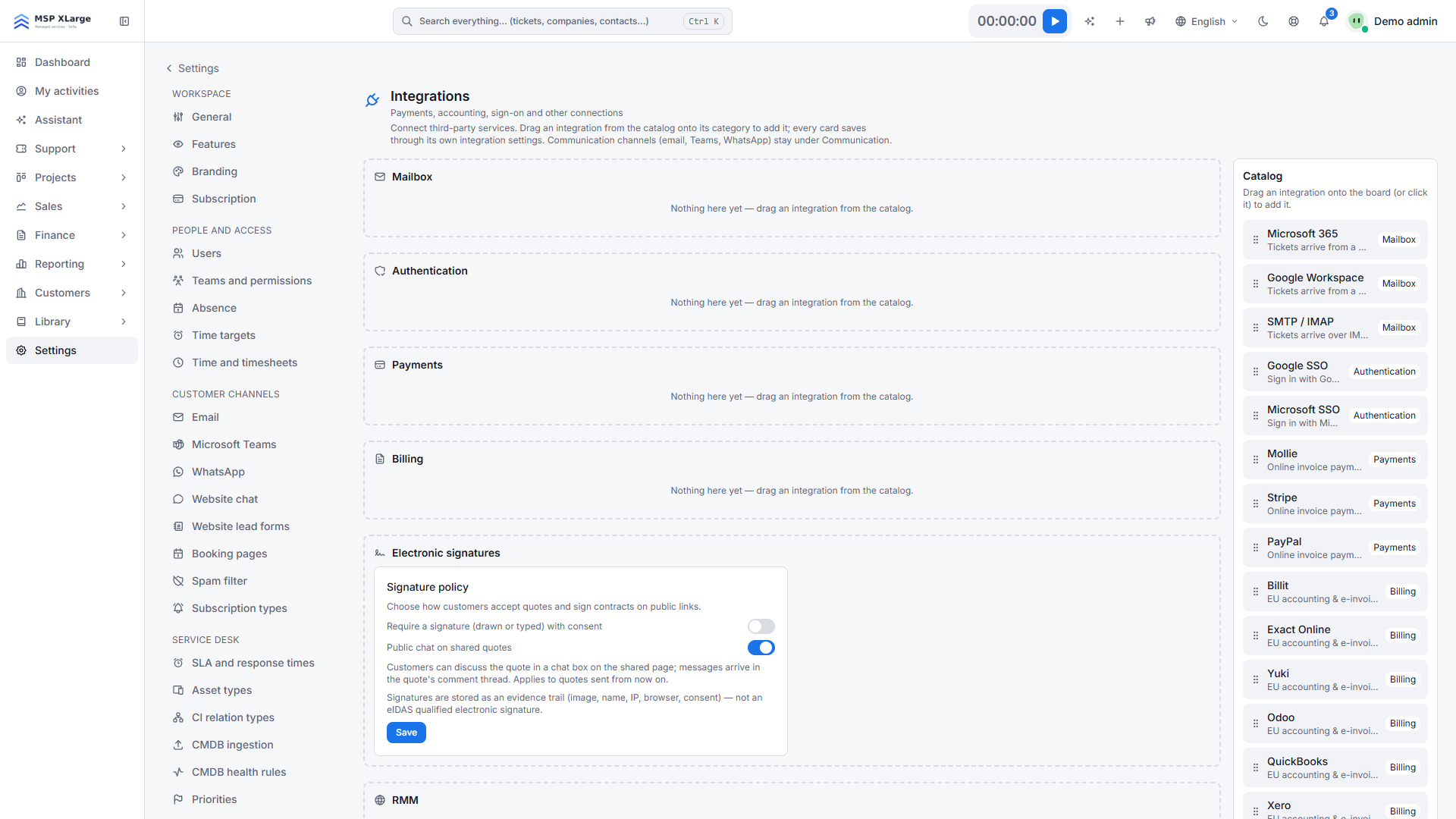
Go to Settings → Data and security → Integrations and place the Google Workspace card in the Mailbox category. Until you do, Google Workspace is greyed out on the Email page. The card's Open e-mail settings button takes you straight on.
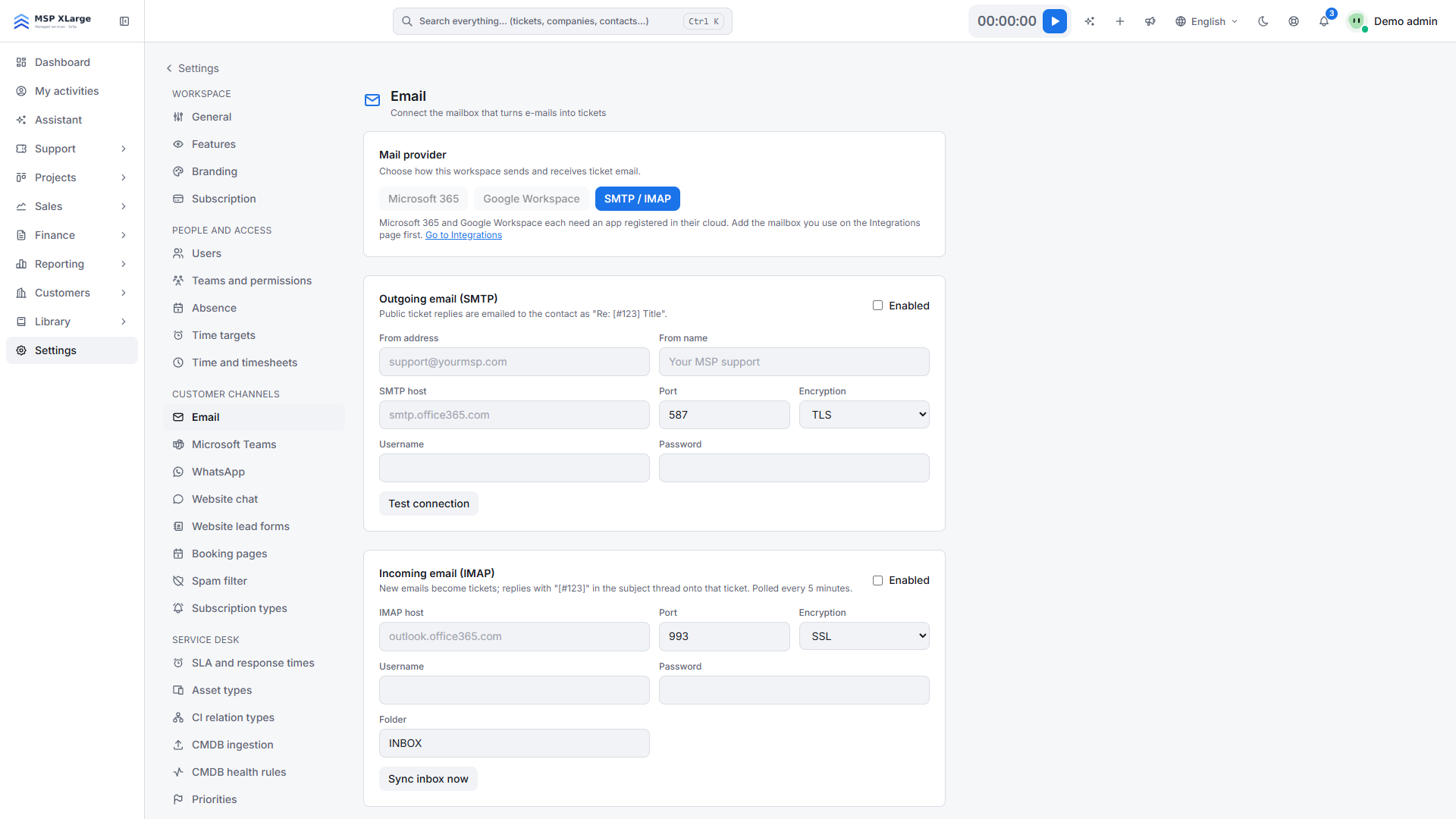
Open Settings → Customer channels → Email and choose Google Workspace under Mail provider. The page shows the redirect URI you need in Google Cloud.
The Email page with the choice between Microsoft 365, Google Workspace and SMTP/IMAP, before any mailbox is connected.
https://<your-workspace-host>/settings/email/oauth/google/callback.OPS requests the scopes gmail.modify, gmail.send and userinfo.email, with offline access.
Fill in Client ID, Client secret and Mailbox address. Tick Send replies and Mail-to-ticket. If you want unknown senders registered as contacts automatically, switch that option on too. Click Save.
Click Connect mailbox, sign in with the mailbox account and approve the Gmail permissions. Google shows this consent screen on every connect. You return with "Mailbox connected."
Then click Test connection. It tells you which account OPS is connected as, for example "Connected as [email protected]." Next, use Run diagnostics and Send test message, reply to the test email and check that a ticket appears.
The recent provider activity log shows each Gmail API call and what Google answered, for 30 days.
Read more about email as a channel on the service desk page, and see all connections under EU integrations.
Ready to turn your Gmail mailbox into tickets? Get started for free and connect Google Workspace in about fifteen minutes.
Xcellerate OPS covers Belgian 2027 time registration requirements out of the box — no extra module needed.