
RMM Labs
Integrations 4 min read 28 September 2026 By Fred

How to connect your Microsoft 365 mailbox to Xcellerate OPS

Step by step: register the app in Microsoft Entra ID, connect your mailbox and test it, so every email to support@ becomes a ticket.
How to connect your Microsoft 365 mailbox to Xcellerate OPS

Connect your Microsoft 365 mailbox, your own or a shared one such as support@, to Xcellerate OPS and every new email becomes a ticket. Replies thread onto the right ticket and your technicians answer from that same mailbox. The connection uses Microsoft Graph with modern authentication, so OPS stores no SMTP or IMAP passwords.

TL;DR

  • Register an app in Microsoft Entra ID, add the redirect URI shown in OPS and grant the Graph permissions Mail.ReadWrite, Mail.Send, User.Read and offline_access.
  • Enter the app details and the mailbox address in OPS, then sign in with Connect mailbox.
  • OPS checks for new mail every 5 minutes. Processed emails move to Deleted Items.

Before you start

  • You are an admin of your OPS workspace. Only admins can set up the mailbox.
  • You can register an app in Microsoft Entra ID and create a client secret for it.
  • You have an account to sign in with. For a shared mailbox, that account needs Full Access to the shared mailbox in Exchange.

Step 1: add Microsoft 365 to the Mailbox category

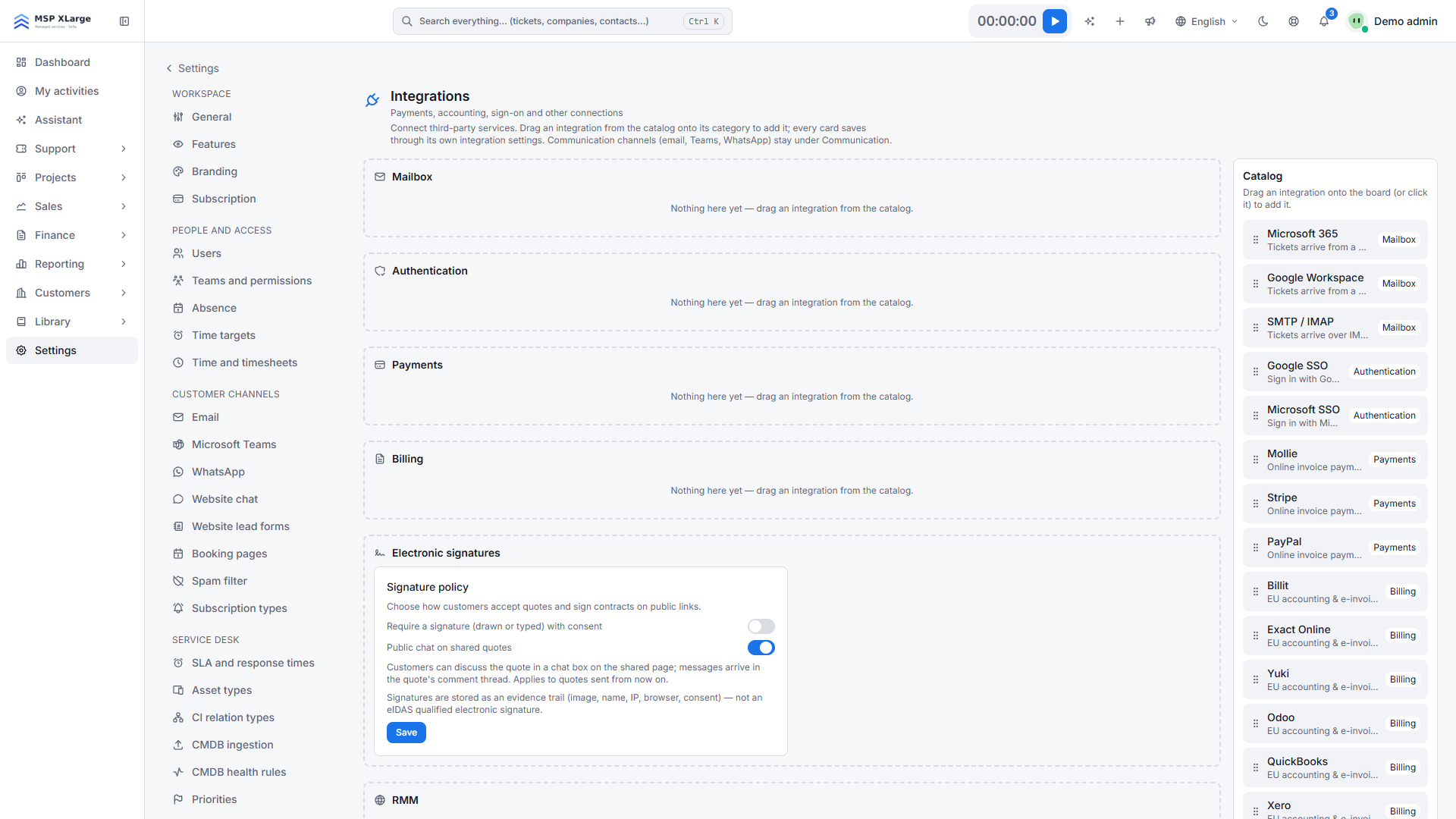
Go to Settings → Data and security → Integrations. Place the Microsoft 365 card in the Mailbox category. Until you do, Microsoft 365 is greyed out on the Email page. The card's Open e-mail settings button takes you straight on.

Integrations board with empty categories and the catalog of available integrations The Integrations board with the empty Mailbox, Authentication, Payments and Billing categories, and the catalog of available integrations on the right.

Step 2: choose Microsoft 365 as mail provider

Open Settings → Customer channels → Email. Under Mail provider, choose Microsoft 365. The page shows the redirect URI you need in the next step.
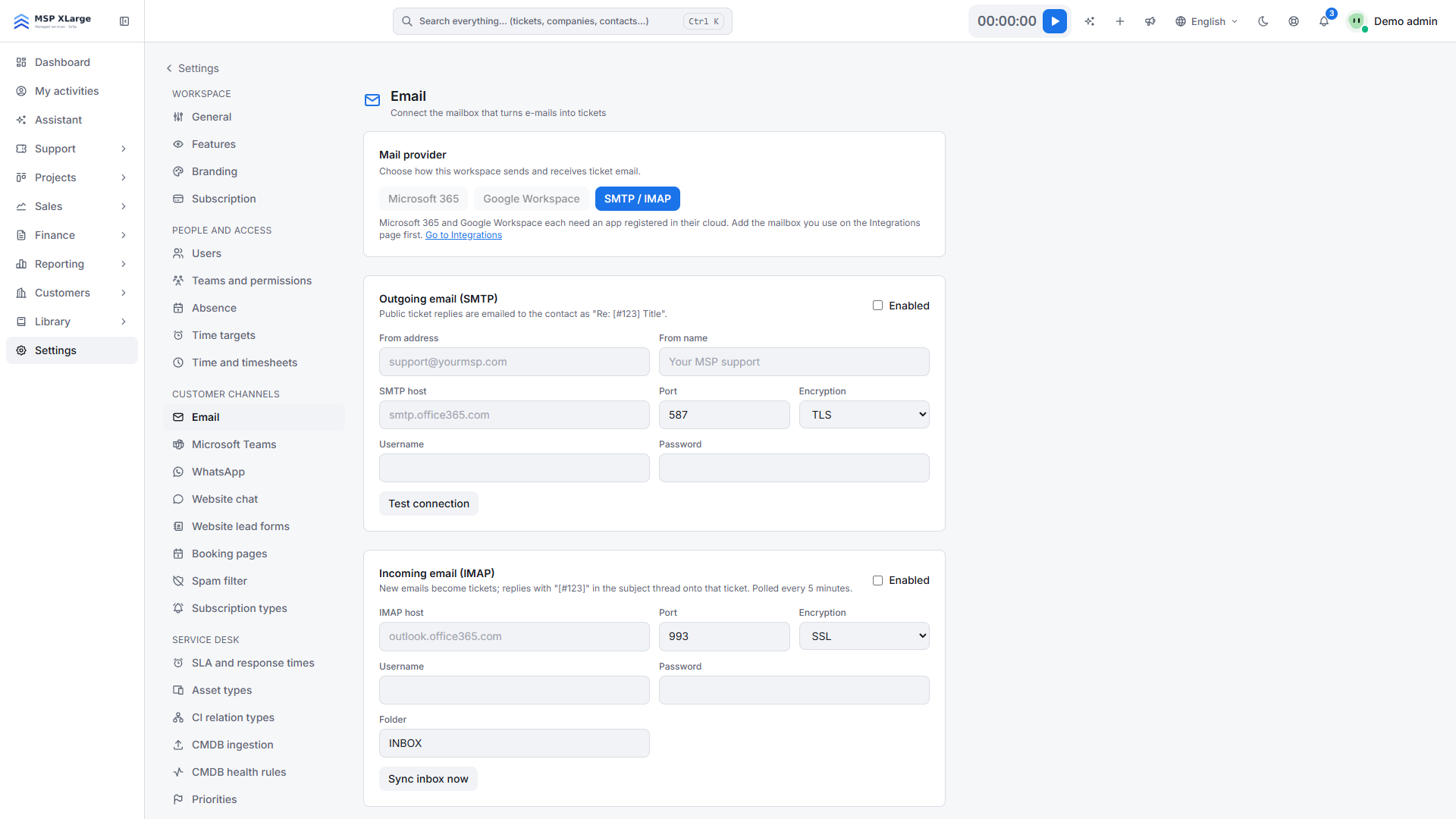
Email settings with the mail provider choice and the SMTP and IMAP fields The Email page with the choice between Microsoft 365, Google Workspace and SMTP/IMAP, before any mailbox is connected.

Step 3: register the app in Microsoft Entra ID

  1. Create an app registration.
  2. Add the redirect URI shown in OPS as a Web redirect. It looks like this: https://<your-workspace-host>/settings/email/oauth/microsoft/callback. Note that this is your workspace host, not the SSO sign-in host.
  3. Add the delegated Microsoft Graph permissions Mail.ReadWrite, Mail.Send, User.Read and offline_access. Grant admin consent if your tenant requires it.
  4. Create a client secret.

Step 4: enter the details in OPS

Fill in Client ID, Client secret, Directory (tenant) ID and Mailbox address. The tenant field accepts common or your own tenant ID. For the mailbox address, enter for example your shared support@ address.

Tick Send replies and Mail-to-ticket. If you want new senders to land in your CRM straight away, also tick Auto-register unknown senders as contacts on their first message. Click Save.

Step 5: connect and test

Click Connect mailbox and sign in with the account that owns the mailbox or has Full Access to it. You return to OPS with "Mailbox connected."

Then click Test connection, Run diagnostics and Send test message. Reply to the test email and check that a ticket appears.

What happens after you connect

  • Inbound: OPS checks the Inbox every 5 minutes. Each run turns up to 20 unread messages into tickets. A subject containing "[#123]" threads onto ticket 123. Attachments and inline images are imported.
  • Automatic replies such as out-of-office messages are filtered out and listed for 30 days.
  • Outbound: public replies go out from the mailbox as "Re: [#123] Title" and are saved to Sent Items. The display name is the From name or your workspace name.

Good to know

  • One mailbox per workspace. You connect a single email integration.
  • Processed emails leave the Inbox. They are moved to Deleted Items, where you can still recover them. The Inbox is not kept as an archive.
  • Shared mailbox: if the mailbox address differs from the signed-in account, OPS reads from and sends as that shared mailbox.
  • Free plan: every outgoing email carries a small "Powered by Xcellerate OPS™" footer. Paid plans send unbranded mail.
  • If Exchange refuses a custom From address, OPS resends the email without it.

Troubleshooting

  • "The signed-in account cannot open this mailbox. Grant it Full Access to the shared mailbox in Exchange, then run this again."
  • "The token is missing a permission it needs. Add it to the application registration and use Reconnect to consent again." Use Reconnect mailbox after adding the permission.
  • "The stored authorisation is no longer valid. Use Reconnect."
  • If the provider activity log shows "0 unread visible" against a full mailbox, OPS is pointing at the wrong mailbox or permissions are missing.

Read more about email intake and the built-in diagnostics on the service desk page, and see all connections under EU integrations.

Ready to turn your support@ mailbox into tickets? Get started for free and connect your Microsoft 365 mailbox in about fifteen minutes.

Frequently asked questions

Can I connect a shared mailbox such as support@?
Yes. Sign in with an account that has Full Access to the shared mailbox in Exchange and enter the shared address as the mailbox address. OPS then reads from and sends as that shared mailbox.
What happens to an email once it becomes a ticket?
Processed emails are moved to Deleted Items in Microsoft 365, where you can still recover them. The Inbox is not kept as an archive.
Does OPS store a password for my mailbox?
No. The connection uses Microsoft Graph with OAuth, so no SMTP or IMAP passwords are stored.
Sources: Verified against the Xcellerate OPS source code by the product team on 2026-09-28. Feature pages: https://rmmlabs.io/en/products/ops/features/integrations-eu; https://rmmlabs.io/en/products/ops/features/service-desk. Screenshots: real captures of the Xcellerate OPS demo workspace, Sep 2026.

Ready to solve time registration compliance?

Xcellerate OPS covers Belgian 2027 time registration requirements out of the box — no extra module needed.

Related articles