Give each technician a personal public link where customers and prospects book a meeting in a free slot themselves. Every booking opens a ticket for that technician and appears on the customer's CRM timeline. Useful for MSPs and service businesses that want fewer e-mails back and forth about a suitable time.
TL;DR
- Settings → Customer channels → Booking pages → New page, one page per technician.
- Set working days, hours, durations, lead time and horizon, then share the public link.
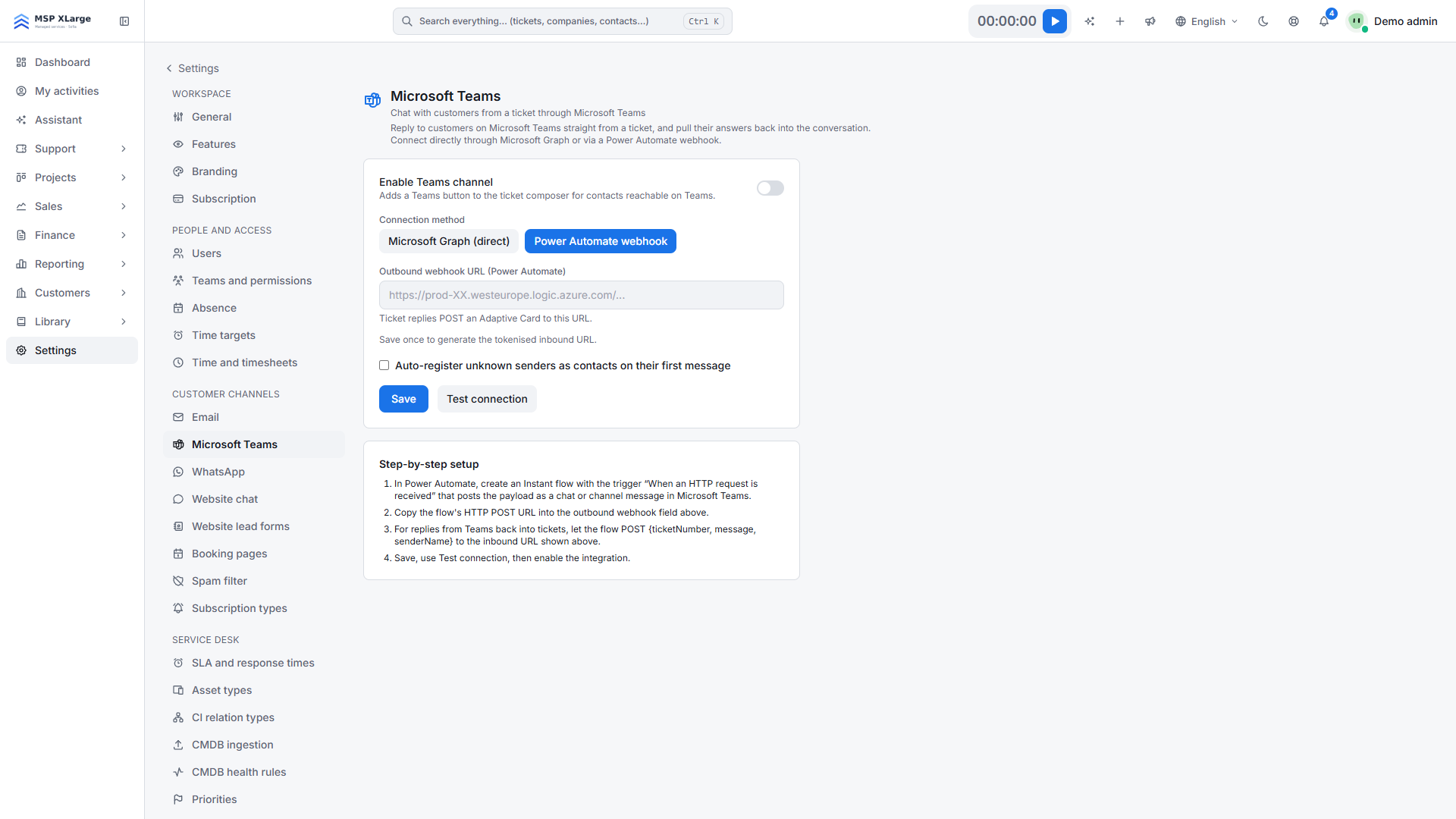
- Optional: connect Microsoft Teams (Graph) so the technician's Outlook busy times are respected.
Before you start
- You need the workspace admin role. An admin creates pages for any admin or technician.
- Each technician can have one booking page.
- Nothing is required in another system. To respect Outlook busy times, the Microsoft Teams integration must be connected with Graph under Settings → Microsoft Teams, and the technician's OPS e-mail address must match their Microsoft 365 mailbox.
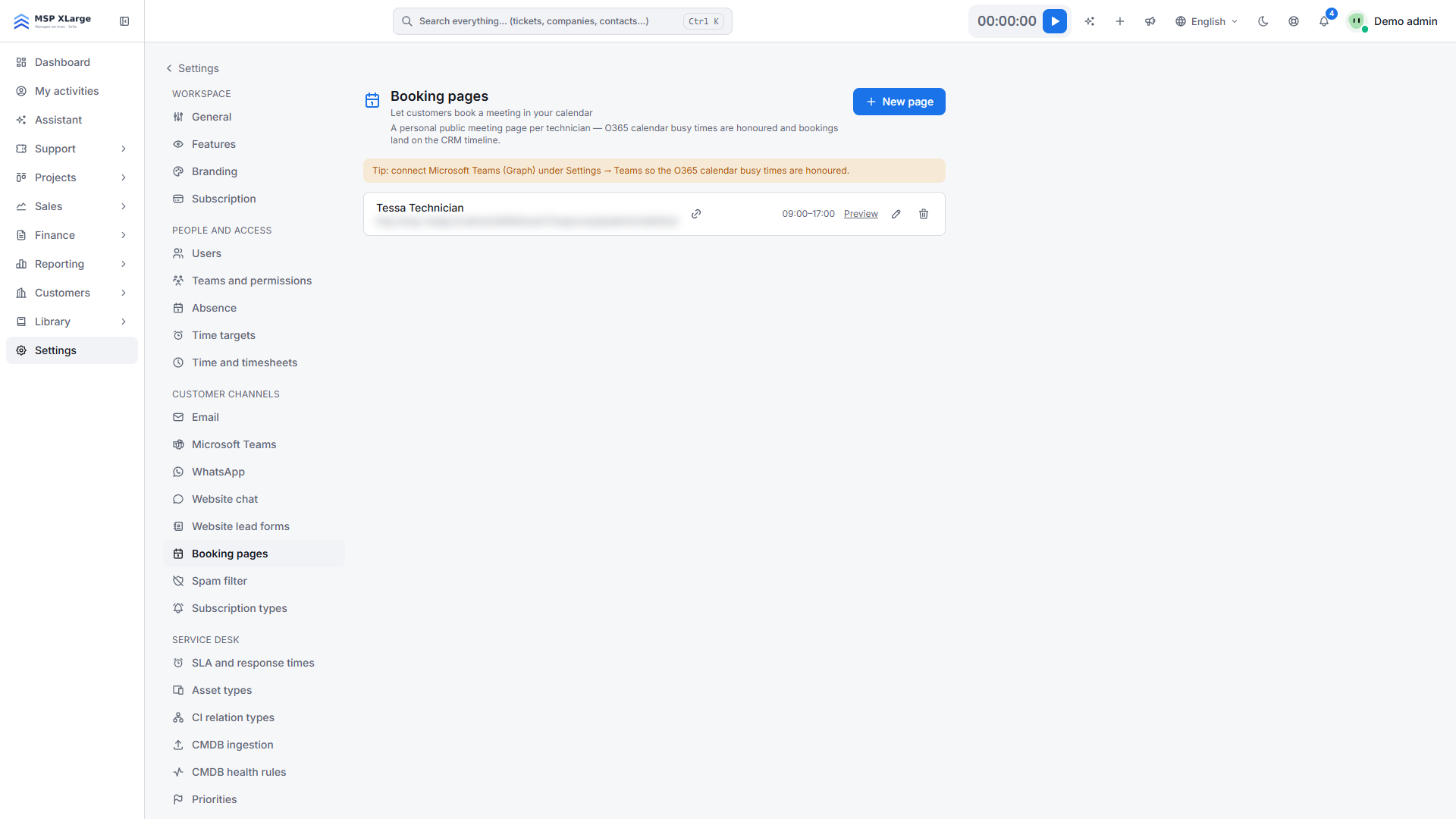 Settings → Booking pages with one technician booking page listed, the "New page" button and a tip to connect Microsoft Teams (Graph) for O365 busy times.
Step 1: create the page
- Go to Settings → Customer channels → Booking pages.
- Click New page.
- Pick the Technician. Optionally set a Page title (default "Meeting with "), an intro text and a colour.
Step 2: set availability
- Working days, Start and End: when bookings are possible. Times follow the workspace time zone.
- Durations (min): up to 6 options, from 5 to 480 minutes.
- Lead time (hours): minimum notice, 0 to 168 hours (default 4).
- Horizon (days): how far ahead people can book, 1 to 365 days (default 60).
Step 3: save and share
- Keep the page enabled and save.
- Share the public link
https://<your-workspace-host>/book/<token>, for example in your e-mail signature.
Step 4 (optional): respect Outlook busy times
If you see the tip "Tip: connect Microsoft Teams (Graph) under Settings → Teams so the O365 calendar busy times are honoured.", the page does not yet take Outlook into account. Connect the Microsoft Teams integration with Graph and check that the technician's e-mail in OPS is the same as their Microsoft 365 mailbox.
What happens after you connect
- The visitor sees the available days of the month and the free slots per day. With Graph connected, that day's Outlook busy times are removed (best effort).
- The visitor enters name and e-mail, optionally company and notes. Their time zone is taken into account.
- OPS re-checks the slot, then:
- finds or creates the contact;
- creates a ticket assigned to the technician (channel "webmeeting");
- stores the meeting and logs a "meeting" on the CRM timeline;
- fires the "ticket created" event.
- The visitor gets a ticket reference number on screen.
Good to know
- A booking page does not send a calendar invitation by itself. The booking lives in OPS as a ticket and on the CRM timeline.
- Slots are shared with the "Schedule a meeting" applet on your website, so there is no double booking between the two.
- Without the Teams integration via Graph, only OPS bookings block a slot.
- Disabling a page makes its link return "not found".
- Each page has a random 24-character link; nothing else about the technician is exposed. Public pages are rate-limited.
Troubleshooting
- "This technician already has a booking page." There is one page per technician. Edit the existing page instead.
- "That time was just taken — please pick another slot." The visitor sees this when the slot was taken moments earlier. Picking another slot is enough.
- Outlook meetings don't block slots. Check that the Teams integration via Graph is connected and that the technician's e-mail matches their Microsoft 365 address.
Read more about the service desk and our EU integrations.
Get started for free and share your team's first booking link today.