With the website chat in Xcellerate OPS, you paste one line of code on your own website and visitors get a chat button. Every chat becomes a ticket for the team you choose: technicians answer from the normal ticket view and the visitor sees the replies live. A second, optional applet lets visitors book a meeting with one technician. This guide is for admins at MSPs, SMEs and service businesses.
TL;DR
- Paste one script tag before
</body>; no account, API key or domain allow-list needed.
- Every chat becomes a ticket for the chosen team, and the visitor sees replies live.
- The optional Schedule a meeting applet lets visitors book a slot; each booking opens a ticket for the chosen technician.
Before you start
- You are a workspace admin in OPS.
- You can edit your website's HTML, or your CMS has a field for custom scripts.
- You have at least one team in OPS to route chats to. For the meeting applet: a technician who is a member of that team.
Open Settings → Customer channels → Website chat.
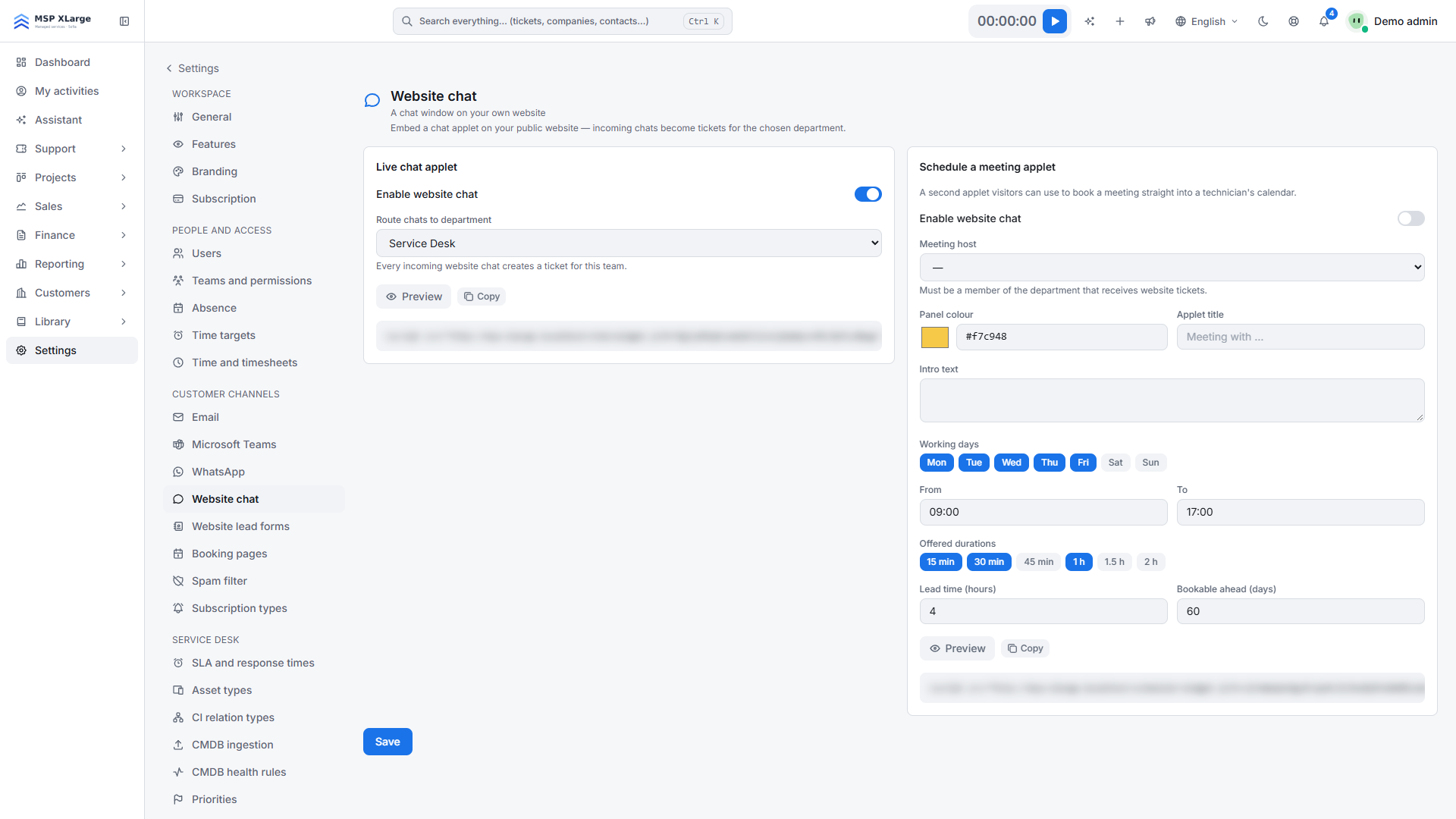 The Website chat page: the live chat applet settings (enable, route to department, embed snippet blurred) and the Schedule a meeting applet settings.
Set up the live chat
- Switch on Enable website chat and pick a team under Route chats to department. This is required once the chat is on.
- Click Save, then Copy next to the Embed code. It looks like this:
<script src="https://<your-workspace-host>/chat/widget.js?k=<key>" async></script>
- Paste it before
</body> on every page where the chat should appear.
- Use Preview to see what visitors see.
Tip: the snippet points to the address you were on when you copied it. If you use a custom domain, copy it from that domain.
Add the meeting applet (optional)
- In the Schedule a meeting applet section, switch the applet on and choose the Meeting host. The host must be a member of the team that receives website tickets. If you just changed the team, save first.
- Set the colour, title, intro text, working days, from/to hours, durations (5 to 480 minutes), lead time (0 to 720 hours, default 4) and how far ahead visitors can book (1 to 365 days, default 60).
- Save and paste the applet's own snippet (
…/scheduler/widget.js?k=<key>) on your site.
What happens after you connect
- The visitor enters a name, email address, optional company and a message. OPS finds the contact by email or creates an unqualified lead contact, and opens a ticket for the routing team. The usual ticket-created notifications, webhooks and automations run.
- Technicians reply on the ticket and the visitor sees the reply in the chat. Internal notes are never shown. The visitor sees your team name, or the technician's name if the portal setting to show technicians is on.
- The chat follows the visitor's browser language: 25 EU languages, with English as the fallback.
- A chat lead can become a qualified opportunity from the ticket with "Convert to opportunity".
- The meeting applet shows free slots within the weekly window you set. A booking creates the contact and a ticket assigned to the host. Slots are shared with personal booking pages, so there are no double bookings.
Good to know
- One chat configuration and one meeting applet per workspace.
- The meeting applet does not create a calendar event and does not check Outlook free/busy; only personal booking pages do that. A booking gives the host a ticket.
- If you switch the applet off, the snippet on your site simply does nothing.
- When the visitor closes the chat, your technicians see "The visitor has left the chat".
- The public chat works without cookies, is protected by a random widget key, and every conversation gets its own token. Bookings are rate-limited.
Troubleshooting
- No chat button? Check that the applet is enabled, a routing team is selected and the snippet has the right key.
- "Pick a technician from the team that receives website tickets." The host is not a member of the routing team.
- "Save first — the host list follows the selected department." Save first; the host list follows the selected team.
- The visitor sees "That time was just taken — please pick another slot." Someone else just booked that slot; the visitor picks another one.
Get started
Get started for free and put the chat on your website today. See how the omnichannel service desk brings all your channels together, and how multilingual support works.