Connect Microsoft Teams to Xcellerate OPS and your technicians can answer a customer on Teams straight from the ticket. The customer's Teams replies come back into the ticket conversation, so the whole exchange stays in one place. This guide is for workspace admins at MSPs and service businesses that run on Microsoft 365.
TL;DR
- Two connection methods: Microsoft Graph (direct), where OPS chats from a licensed service account, or Power Automate webhook, where your own flow delivers the messages.
- Graph needs an app registration in Microsoft Entra ID with three delegated permissions and admin consent.
- Customer replies land on open tickets as public comments; with Graph, OPS checks for new messages every 5 minutes.
Before you start
- You are a workspace admin in OPS.
- For Graph: someone who can register an app and grant admin consent in Microsoft Entra ID, and a service account with a Teams licence (for example support@). OPS uses delegated sign-in, so no password is stored and MFA can stay on.
- For the webhook method: a Power Automate flow with a public https URL.
Open Settings → Customer channels → Microsoft Teams.
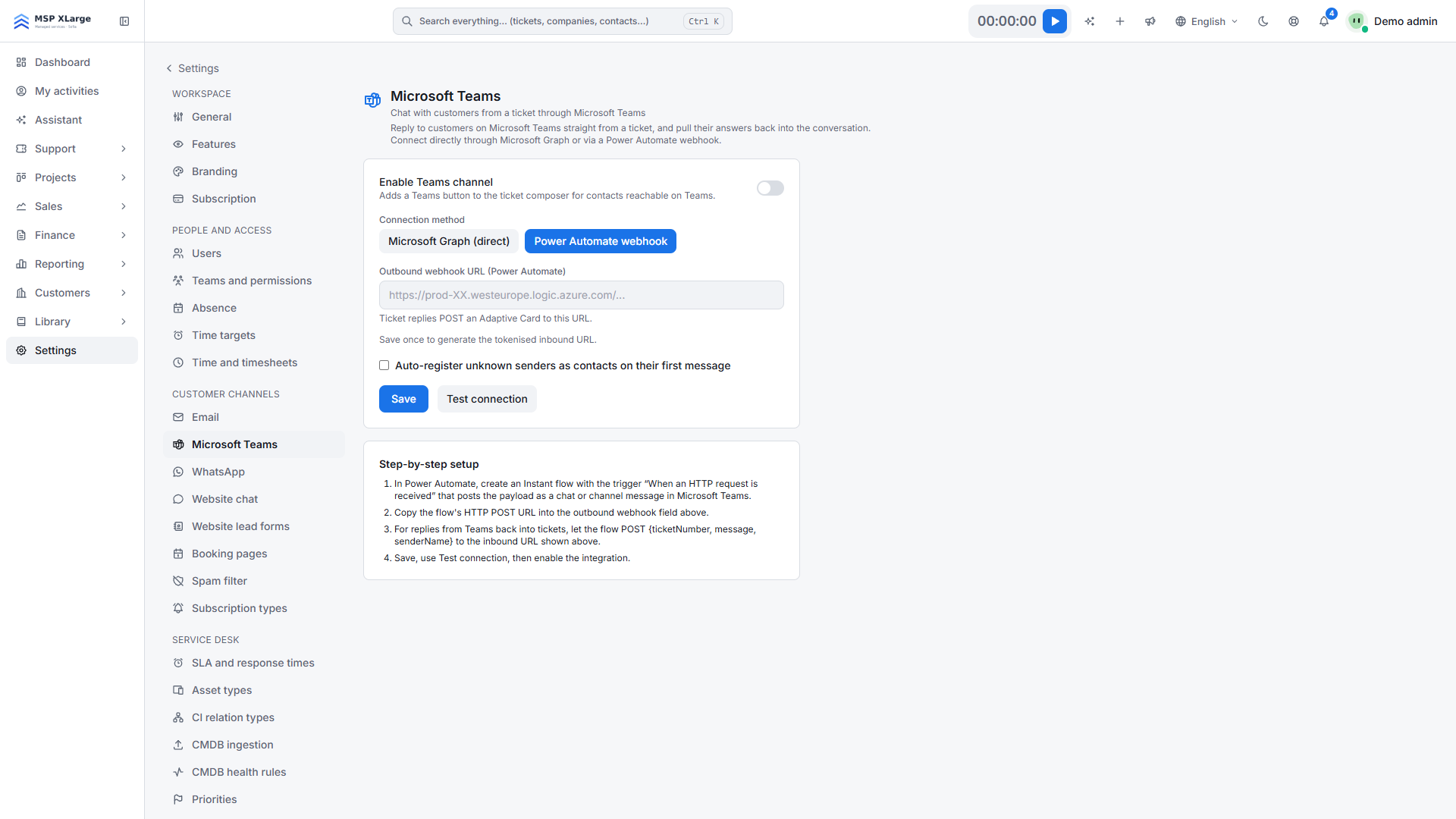
The Microsoft Teams page before anything is connected: the switch to enable the channel, the connection method choice and the setup steps box.
Method A: Microsoft Graph (direct)
1. Register the app in Entra ID
In Microsoft Entra ID, go to App registrations → New registration. Give it a clear name, such as "Xcellerate OPS Teams", and choose Single tenant.
2. Copy the IDs into OPS
Copy the Application (client) ID into Application (client) ID and the Directory (tenant) ID into Directory (tenant) ID.
3. Create a client secret
Under Certificates & secrets, create a new client secret. Copy its value (not the secret ID) into Client secret.
4. Add the redirect URI
Under Authentication, add the Web platform and register the redirect URI shown in OPS (it has a copy button). It follows this pattern:
https://<your-workspace-host>/settings/teams/oauth/callback
5. Grant the permissions
Under API permissions → Microsoft Graph → Delegated, add Chat.ReadWrite, User.Read.All and offline_access. Then click Grant admin consent.
6. Connect the service account
Click Save, then Connect with Microsoft, and sign in once as the licensed service account. OPS confirms with "Microsoft Teams connected." and the page shows Connected as {account}.
7. Test and enable
Click Test connection, switch on Enable Teams channel and save. Optionally, OPS can register unknown senders automatically, and a backchannel chat lets technicians discuss a ticket (on by default).
Method B: Power Automate webhook
- In Power Automate, build an Instant flow with the trigger "When an HTTP request is received" that posts to Teams. Paste its HTTP POST URL into Outbound webhook URL.
- Click Save once. OPS then generates a tokenised URL in Inbound URL (wire your Teams flow to this). Point your flow's reply step at it and have it POST JSON with
ticketNumber,message,senderNameand, optionally,senderEmail. - Click Test connection, switch on Enable Teams channel and save.
What happens after you connect
- A Teams button appears in the ticket composer for contacts OPS can reach.
- With Graph, the first Teams reply on a ticket opens a new group chat for that ticket between the service account and the contact, with the ticket reference and title as its topic. OPS finds the contact by email address and puts the technician's name in front of each message.
- Every 5 minutes, OPS pulls new customer messages into open tickets. They appear as public comments.
- With the webhook, replies go out as an Adaptive Card with ticket number, title, technician and text. Messages your flow posts back become a public comment on the matching ticket. Spam rules apply.
Good to know
- Graph reaches contacts that OPS can find by email address in the connected Microsoft directory. Contacts outside that directory may not be reachable on Teams.
- Sync covers open tickets only: up to 200 chats per workspace per run, and the last 30 messages per chat.
- Webhook messages are plain text, and the webhook URL must be a public https address.
- One Teams connection per workspace.
- Reconnect when the client secret expires or the service account is disabled.
Troubleshooting
- "Save the Directory ID, Application ID and client secret first." Save the three Graph fields before you click Connect with Microsoft.
- "Graph token refresh failed — reconnect the service account on Settings → Teams." The secret has probably expired or the account was disabled. Create a new secret if needed and connect again.
- "No Teams user found for ." The contact's email address is not in the connected directory.
- "Webhook URL is not allowed: it must be a public https address." Use the public HTTP POST URL of your flow. If your flow gets "Invalid token." or "Ticket not found.", check the Inbound URL and the ticket number.
Get started
Get started for free and connect Teams in your new workspace. See also how the omnichannel service desk brings email, Teams and WhatsApp into one inbox, and how multilingual support works across channels.