Connect WhatsApp Business to Xcellerate OPS and customer messages to your business number become tickets, or land on the customer's open ticket. Technicians reply from the ticket, and the reply goes out from the same number. This guide is for admins at MSPs and service businesses who want WhatsApp in the same inbox as email.
TL;DR
- Connect in one click with Automatic configuration, or manually with your own Meta app.
- Incoming text messages become tickets in real time; replies go out as plain text from your business number.
- Text messages only, and WhatsApp's 24-hour reply window applies.
Before you start
- You are a workspace admin in OPS.
- Automatic: a Meta (Facebook) login that can create or select a WhatsApp Business Account, and a phone number you can use with the WhatsApp Cloud API. Meta sets its own requirements for the number.
- Manual: a Meta app of type "Business" with the WhatsApp product, a verified business phone number (or Meta's test number) and a permanent system-user access token with
whatsapp_business_messaging and whatsapp_business_management.
Open Settings → Customer channels → WhatsApp.
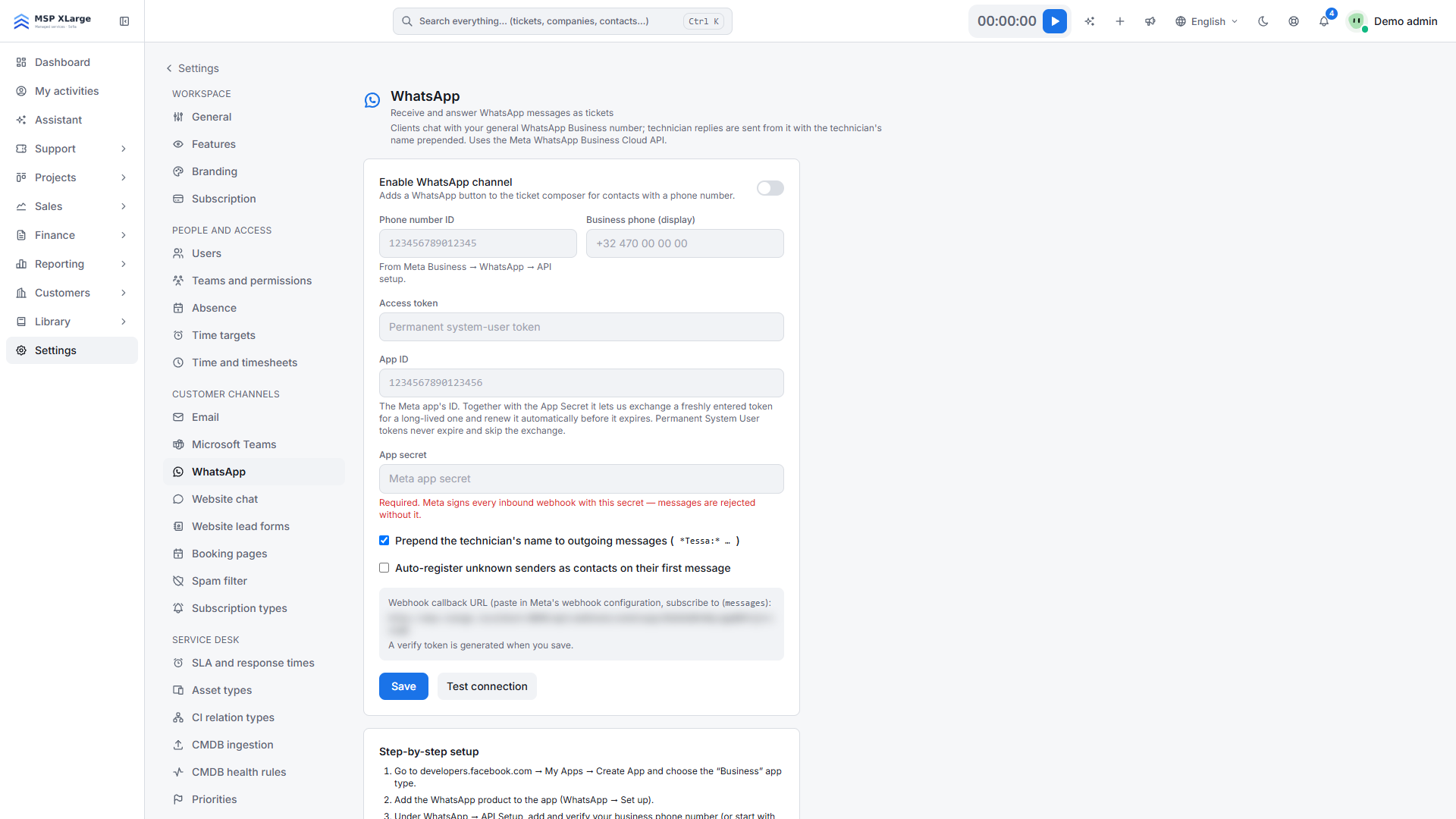 The WhatsApp page before anything is connected: the enable switch, fields for phone number ID, access token, app ID and app secret, the webhook callback URL (blurred) and the setup steps box.
Method A: Automatic configuration (one click)
- In the Automatic configuration panel, click Connect WhatsApp.
- In Meta's popup, pick or create your WhatsApp Business Account and claim the number. Finish the popup in one go.
- OPS completes the connection straight away: token, number registration and webhook are handled for you. The page reloads with "Connected automatically — no token or webhook to maintain." and the channel is enabled.
- Send a WhatsApp message to the number and check that a ticket appears.
1. Prepare the Meta app
Follow the guide on the page: create the app, add the number, note the Phone number ID, create a permanent token and copy the App secret. The App ID is optional; with it, OPS can renew expiring tokens automatically.
2. Enter the values in OPS
Fill in Phone number ID, Access token, App secret and, if you like, App ID and Business phone (display). Click Save. On the first save, OPS generates a Verify token.
3. Set up the webhook in Meta
In Meta → WhatsApp → Configuration, paste the Callback URL and Verify token shown in OPS, and subscribe to messages. The Callback URL follows this pattern:
https://<your-workspace-host>/api/webhooks/whatsapp/<workspace-id>
4. Test and enable
Click Test connection; you should see "Connected to WhatsApp number …". Switch on Enable WhatsApp channel and save.
What happens after you connect
- Incoming text messages arrive in real time. OPS matches the sender to a contact by phone number and adds the message to that contact's latest open ticket. Otherwise it creates a new ticket "WhatsApp: " with WhatsApp as the channel. Unknown senders can be registered as contacts automatically; spam rules apply.
- The ticket composer shows a WhatsApp button for contacts with a phone number. Replies go out as plain text, up to 4,000 characters. With Prepend the technician's name to outgoing messages, the technician's name goes in front.
- Tokens from automatic configuration and permanent system-user tokens do not expire. Manual tokens with an expiry date are renewed daily once they are within 14 days of expiring, if App ID and App secret are saved.
Good to know
- Only text messages are imported. Photos, voice notes and documents are ignored.
- The 24-hour window: more than 24 hours after the customer's last message, Meta only delivers approved templates. OPS does not send templates, so a late reply can fail.
- One WhatsApp number per workspace.
- Incoming messages must be signed by Meta. Without a valid App secret, OPS accepts nothing. Tokens and secrets are never shown again in the interface.
Troubleshooting
- "WhatsApp refused the request: " during automatic setup: often the number is already registered elsewhere. Sort it out in Meta, then try again.
- "WhatsApp automatic setup is not available on this platform." Use the manual method instead.
- "Configure the phone number ID and access token first." Save both fields before you test.
- No incoming messages? Check that the App secret is saved, the webhook is subscribed to "messages" and the verify token matches. If a token expires, admins get a notification: renew it in Settings → WhatsApp.
Get started
Get started for free and connect WhatsApp in your workspace. The omnichannel service desk brings email, Teams and WhatsApp together, with multilingual support across every channel.