Not on Microsoft 365 or Google Workspace, or simply want to connect a mailbox from your hosting provider? With SMTP and IMAP you can connect almost any mailbox to Xcellerate OPS with a username and password. OPS sends ticket replies over SMTP and picks up new emails over IMAP to turn them into tickets. No app registration is needed.
TL;DR
- In the Email settings, choose SMTP / IMAP as mail provider. This option is always available.
- Fill in outgoing (SMTP) and incoming (IMAP) mail, test and save.
- OPS checks for new mail every 5 minutes and deletes processed emails from the folder, so use a dedicated support mailbox.
Before you start
- You are an admin of your OPS workspace. Only admins can set up the mailbox.
- From your mail host you have: the SMTP host, port, encryption and credentials, and the IMAP host, port, encryption, credentials and folder.
- The IMAP server presents a valid TLS certificate. OPS checks it.
- Ideally, a dedicated support mailbox or folder, because processed emails are deleted.
Step 1: choose SMTP / IMAP
Open Settings → Customer channels → Email and choose SMTP / IMAP under Mail provider. You don't need to place a card on the Integrations page first.
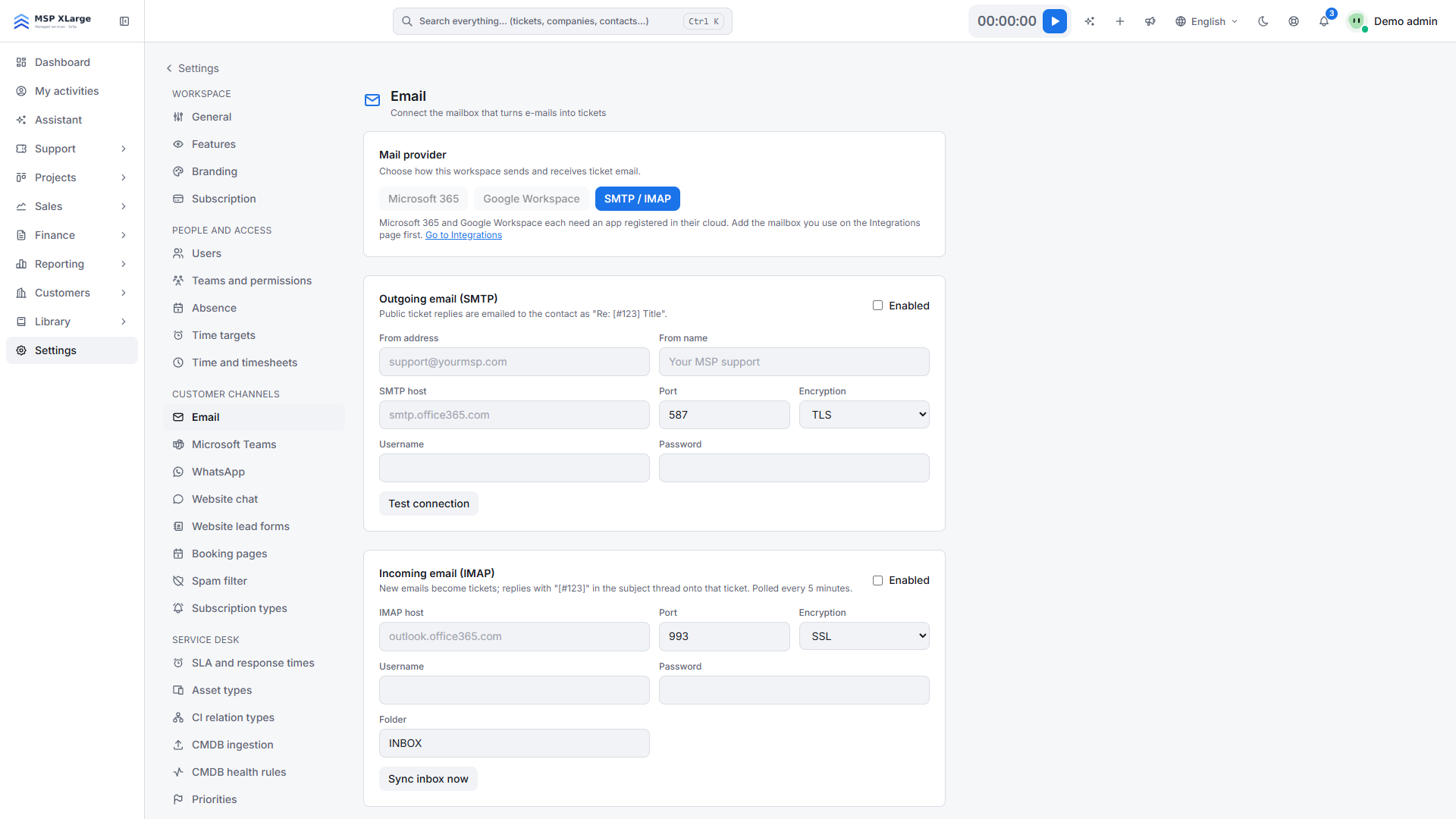 The Email page with the choice between Microsoft 365, Google Workspace and SMTP/IMAP, and the empty outgoing and incoming mail fields.
Step 2: set up outgoing email
In Outgoing email (SMTP), tick Enabled and fill in:
- From address and From name
- SMTP host
- Port and Encryption (default 587 with TLS)
- Username and Password
Click Test connection. On success you see "SMTP connection successful." Otherwise you see your mail server's own error text.
Step 3: set up incoming email
In Incoming email (IMAP), tick Enabled and fill in:
- IMAP host
- Port and Encryption (default 993 with SSL)
- Username and Password. If you leave the username blank, OPS uses the From address.
- Folder (default INBOX)
Optionally tick Auto-register unknown senders as contacts on their first message. Click Save. You see "Email integration saved."
Step 4: sync and test
Click Sync inbox now to import straight away. Then use Run diagnostics and Send test message. Reply to the test email and check that a ticket appears.
What happens after you connect
- Inbound: every 5 minutes, or right away with Sync inbox now, up to 20 unseen messages in the chosen folder become tickets. A subject containing "[#123]" threads onto ticket 123.
- Attachments and inline images are kept. Automatic replies are filtered out and listed for 30 days.
- OPS prevents duplicate tickets.
- Outbound: public replies go out as "Re: [#123] Title", with the From name or your workspace name as display name.
Good to know
- One mailbox per workspace.
- Processed emails are deleted from the IMAP folder. They do not go to a trash folder, so use a dedicated support mailbox or folder.
- Password sign-in: if your provider has switched off password-based (basic) authentication, the server refuses the connection. For Microsoft 365 or Google Workspace, use their dedicated integrations instead.
- Wrong folder name? The mailbox then looks empty. Diagnostics tell the two apart for you.
- Leaving a password field blank when you save keeps the stored password.
- Free plan: every outgoing email carries a small "Powered by Xcellerate OPS™" footer. Paid plans send unbranded mail.
Troubleshooting
- "Check the SMTP host, port, encryption and credentials." Read the mail server's error text next to it.
- "Check the IMAP host, port, encryption, credentials and folder name." When it works, diagnostics show something like "Folder INBOX is readable, 3 unread messages."
- "Mail will not become tickets until this is switched on." or "Replies will not be emailed until this is switched on." Enable incoming or outgoing email and save.
- "Enable incoming email first." appears when you click Sync inbox now without IMAP enabled.
Read more about email as a channel on the service desk page, and see all connections under EU integrations.
Want your support mailbox turned into tickets today? Get started for free and connect it over SMTP and IMAP.