
Integrations28 Sept 2026
Upload one template in 3CX and see who is calling, in OPS and in the 3CX client. Every call lands on your customer's CRM timeline.
Connect 3CX to Xcellerate OPS and every incoming call shows who is calling, both in OPS and in the 3CX client. Each finished call lands on the customer's CRM timeline, so your team knows the history before picking up. This guide is for admins of IT MSPs and service businesses that run 3CX.
TL;DR
- OPS generates a 3CX CRM template for your workspace. You upload it in 3CX, and nothing needs opening on your firewall.
- Incoming calls show the matching contact in OPS and in the 3CX client. Every finished call, answered or missed, is logged on the CRM timeline.
- Calling from OPS hands the number to your 3CX app. OPS then lets you note how the call went.
Telephony is a base feature and is included in every plan.
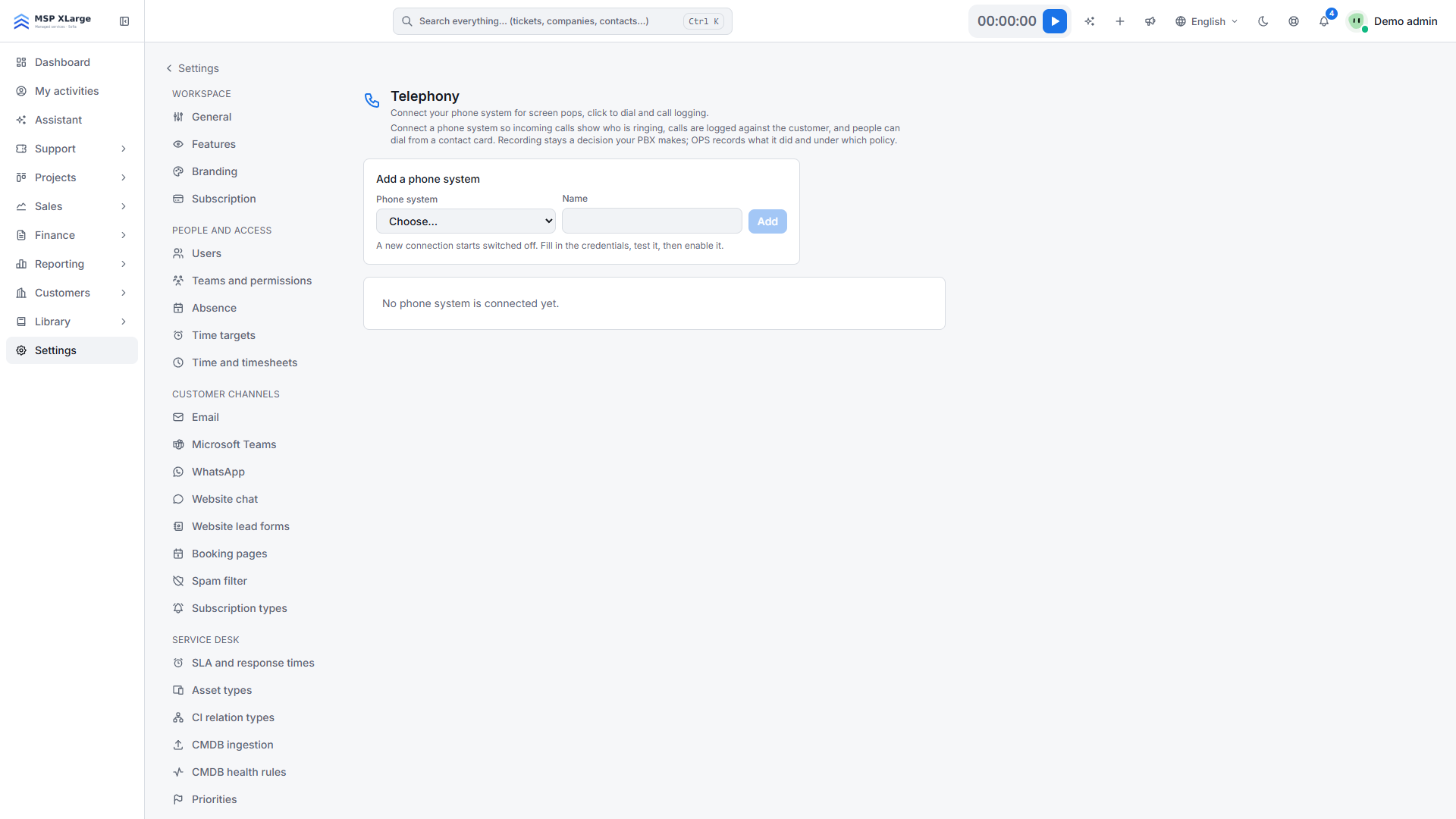
In OPS, go to Settings → Data and security → Telephony. Click Add a phone system, choose 3CX, give the connection a name and confirm.
The Telephony page with a phone-system dropdown, a name field and the message that no phone system is connected yet.
On the card of your new connection, click Download the 3CX template. You get an XML file with everything 3CX needs to reach your workspace, including a secret key that belongs to your workspace only. Don't edit the file by hand.
Open the 3CX Admin Console and go to the CRM integration settings (the OPS hint says Settings › CRM Integration; the exact menu can differ between 3CX versions). Upload the template there.
3CX extensions are not imported. Type each extension and choose who it Belongs to. For a ring or hunt group, click Add person for each member: everyone gets the call card, and it collapses to whoever answers. An extension without a person does not pop. AI colleagues cannot be mapped to an extension.
Click Enable. While the connection is off, OPS refuses calls from 3CX. Make one test call, then click Test connection. Expect "A template and API key are ready to download." and "3CX last called OPS …".
Want to see who is calling before you pick up, with the full customer history next to it? Get started for free and connect 3CX in a few minutes. Read more about the EU integrations in OPS and the service desk.
Xcellerate OPS covers Belgian 2027 time registration requirements out of the box — no extra module needed.