Connect your Zadarma cloud phone system to Xcellerate OPS and every incoming call shows who is calling before you pick up. Calls land on the customer's CRM timeline automatically, and your team can call customers with one click from OPS.
TL;DR
- Copy the API key and secret from Zadarma, enter them in OPS under Telephony, test and enable. No webhook to paste, nothing to open on your firewall.
- Incoming calls pop the matching contact, Zadarma shows the caller's name on the handset, and every call is logged on the CRM timeline.
- Click-to-dial rings your own phone first, then the customer. Recordings made by Zadarma are pulled into OPS.
Before you start
- A Zadarma account with a cloud PBX. Without one, the connection works, but there are no extensions to import.
- The API key and API secret from the Zadarma console (Settings → API). The key must be enabled for API access.
- In OPS, you are a workspace admin, or you have permission to manage calls at contribute level.
- Want recordings in OPS? Switch recording on in Zadarma itself. OPS never turns recording on.
Step 1: Add Zadarma in OPS
In OPS, go to Settings → Data and security → Telephony. Under Add a phone system, pick Zadarma as the Phone system, enter a Name and click Add. It starts switched off.
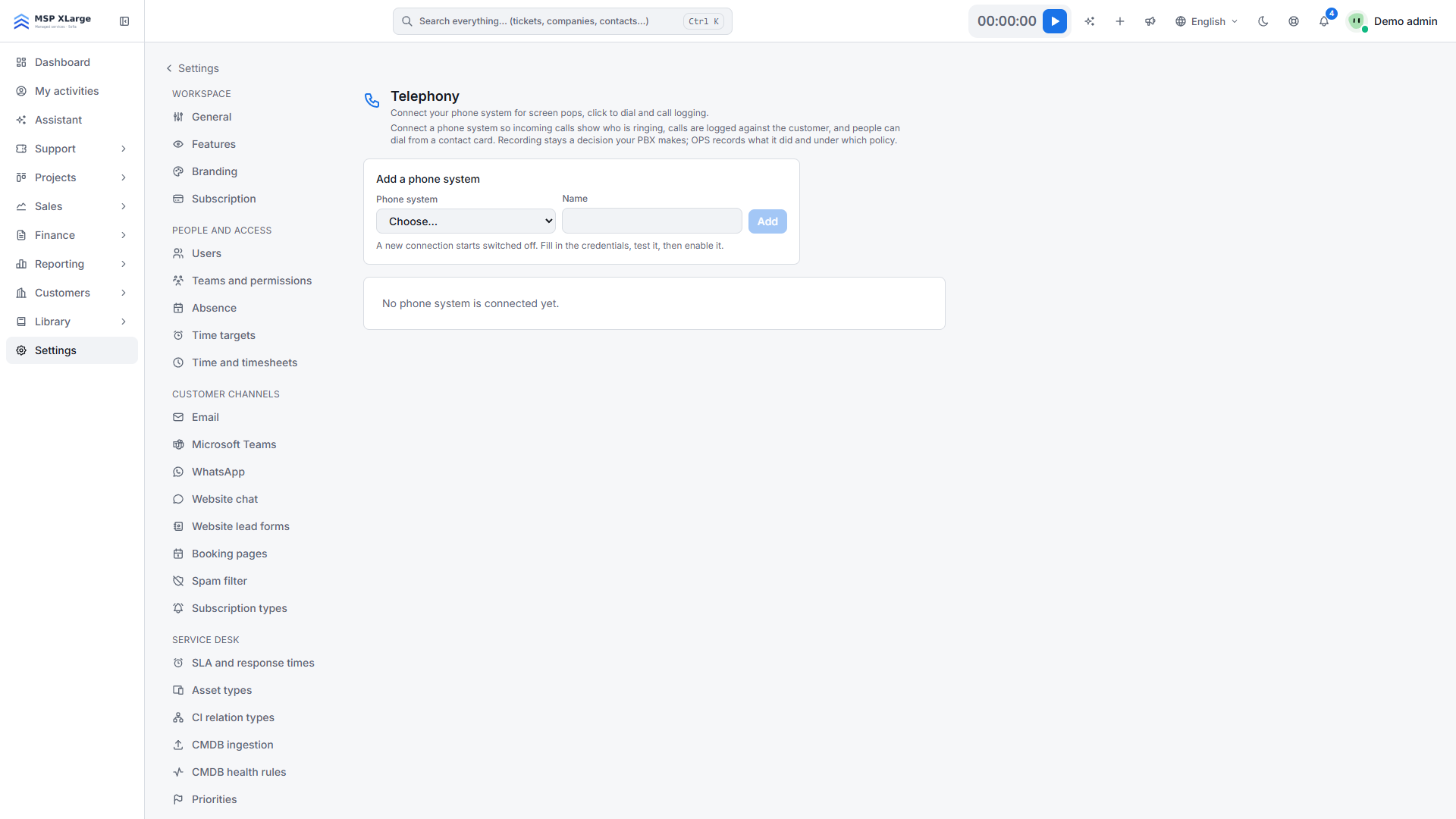 The Telephony page with "Add a phone system", a phone-system dropdown and a name field; no phone system is connected yet.
Step 2: Save the credentials and test
Fill in API key and API secret and click Save first. Test connection checks what is saved, not what you have just typed. Then click Test connection. If all is well, OPS confirms "Zadarma answered; the API key and secret are accepted." and shows how many extensions it found.
Step 3: Import extensions and map them to people
Click Import extensions. For each extension, pick the person under Belongs to; OPS suggests matches based on e-mail address. For a hunt or ring group, use Add person for each member: everyone gets the pop-up, and it collapses to whoever answers. Extensions left on "Nobody — does not pop" stay silent in OPS.
Step 4: Enable and make a test call
Click Enable. OPS now registers its callback address at Zadarma through the API, so you don't set up a webhook by hand. Then make a test call from a number stored on a contact.
What happens after you connect
- Live call events (Zadarma → OPS, real time). When a phone rings, the Calls dock at the bottom right of OPS shows who is calling. On an exact number match you see the contact straight away; on a partial match, OPS shows "Best guess — check before you use the name." From the pop-up you can open the contact or company, add the caller as a contact, or start a New ticket pre-filled with the number (see the service desk).
- Caller name on the handset (OPS → Zadarma). When OPS knows the number, Zadarma shows the caller's name on the phone.
- Call logging. Every finished call is logged on the CRM timeline of the contact and company, with its duration, and linked to the most recent open deal (you can change this). Calls are not attached to tickets automatically. Numbers OPS doesn't know go to Unknown callers; OPS never creates a contact by itself.
- Missed calls. The person whose phone rang gets a "Missed call from " notification, otherwise the deal owner.
- Click-to-dial. Zadarma rings your own phone first ("Calling you first…"), then the customer. Audio never passes through OPS. Afterwards, OPS asks "How did the call go?".
- Nightly check. Every night OPS fills gaps from Zadarma's call statistics, without duplicates.
- Recordings. When Zadarma reports a recording, OPS fetches it and stores it in your workspace. Every play or download is logged.
Good to know
- If you add more than one Zadarma connection, only the first one you enabled receives live call events.
- Disabling also switches Zadarma notifications off. Deleting the connection keeps call history; the credentials and extension mappings go.
- New key invalidates the current callback address immediately. Enable the connection again afterwards.
- Recordings are not deleted at Zadarma.
- AI call summaries are a separate switch, Call summaries under Settings → AI, off by default; it uses AI credits (see AI assist).
Troubleshooting
- "Zadarma refused the request: …" Check the key and secret, and that API access is enabled for the key.
- "The account authenticated but has no cloud PBX, or the key may not read it." Calls may still come in, but there are no extensions to map. Check your cloud PBX in Zadarma.
- The card says Zadarma would not accept the callback URL. Register the address shown under Address to give your phone system by hand in the Zadarma control panel, or press Test connection again once the API is answering. The address follows this pattern:
https://<your-workspace>.<domain>/api/webhooks/pbx/zadarma/<tenant-id>?key=<secret>.
Want to see who is calling before you answer? Get started for free and connect Zadarma in a few minutes.