
Your customers pick the channel, not you. One mails support@, another pings you on Teams, a third sends a WhatsApp at seven in the morning. This guide shows how to get all of it into one queue in Xcellerate OPS on day one.
TL;DR
- In the Email settings, pick your mail provider: Microsoft 365, Google Workspace or SMTP/IMAP. Microsoft 365 and Google Workspace need the app registered on the Integrations page first.
- Fill in both outgoing and incoming mail, press "Test connection" and set spam rules per channel.
- Then add Microsoft Teams, WhatsApp, website chat and booking pages. Every conversation becomes a ticket, with its origin channel shown.
Why one queue matters
An omnichannel service desk is not about having more channels. It is about having one place to look. In OPS, email, Microsoft Teams and WhatsApp feed the same ticket list, and every ticket shows the channel it came from. SLAs, the dispatcher and time tracking then work the same way whatever the source. The full picture is on the service desk page.
If you worked through the checklist in "Your first hour in Xcellerate OPS", you will recognise "Connect e-mail" as one of its eight items. This article is that step, done properly.
Step 1: Choose your mail provider
Open Settings. Under Customer channels you find Email, Microsoft Teams, WhatsApp, Website chat, Website lead forms, Booking pages and Spam filter. Start with Email.
You have three options:
- Microsoft 365
- Google Workspace
- SMTP/IMAP, for any other mail server
Microsoft 365 and Google Workspace need an app registered on the Integrations page first. That page works as a catalog: you drag an integration onto a category. Drag Microsoft 365 or Google Workspace onto Mailbox, then go back to Email and select it as your provider.
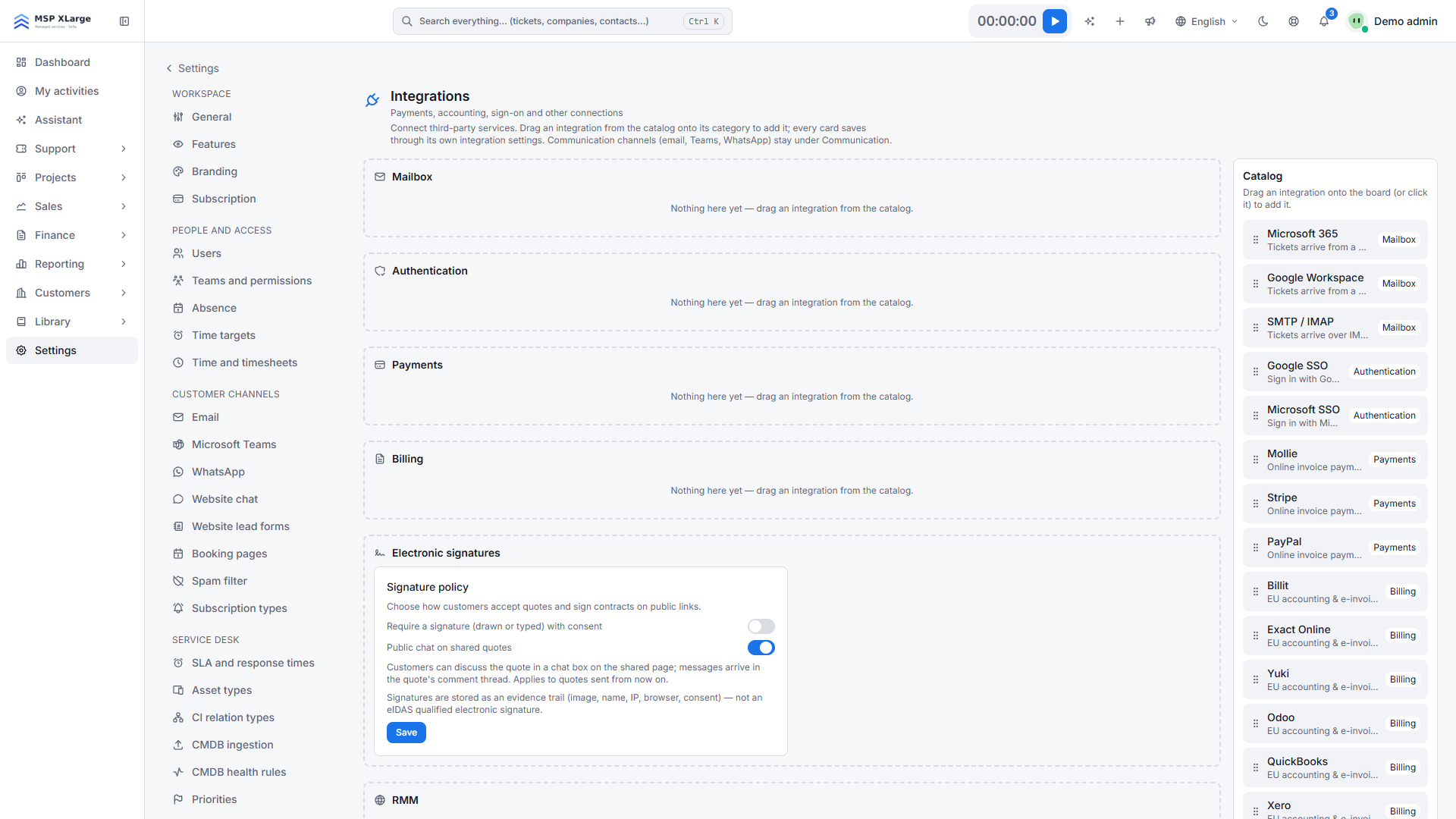 The integrations catalog, with Mailbox, Authentication, Payments and Billing as the categories you drag onto.
The same board holds Google and Microsoft SSO, payments through Mollie, Stripe or PayPal, and accounting links such as Billit, Exact Online, Yuki, Odoo, QuickBooks and Xero. They are described on the EU integrations page. Leave them for later: mail comes first.
Step 2: Set outgoing and incoming mail, then test
The Email page has two halves.
Outgoing (SMTP) is what OPS sends with. Public replies on a ticket go out with a subject like "Re: [#123] Title".
Incoming (IMAP) is the mailbox OPS reads. New e-mails become new tickets.
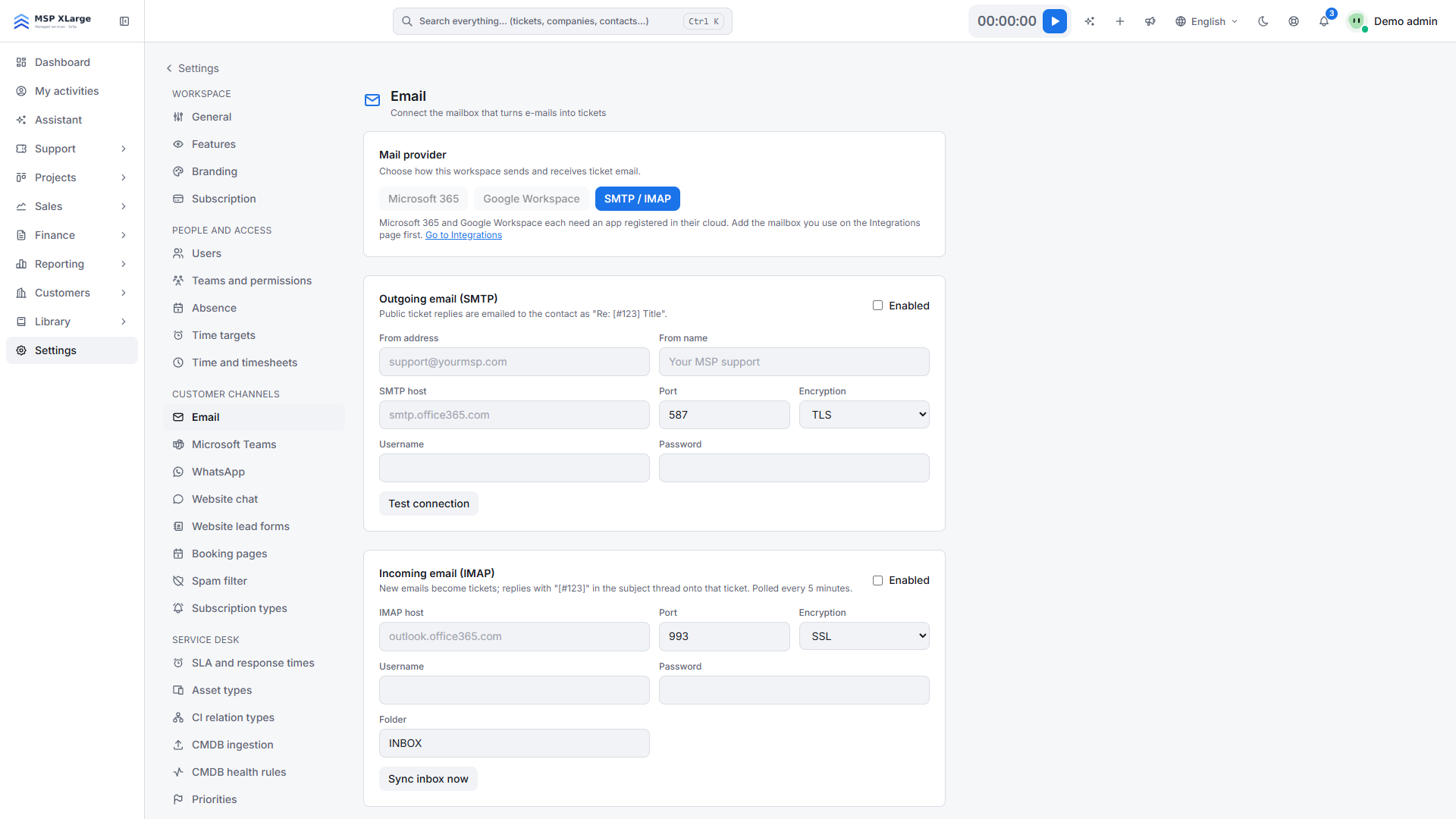 The Email settings page, with the mail provider choice and the outgoing SMTP and incoming IMAP sections.
Fill in both, then press Test connection. Do not skip this. A test takes seconds; a silent mailbox costs you a day of missed tickets. After a successful test, Sync inbox now pulls mail in straight away instead of waiting for the next cycle.
Tip: use the shared support mailbox your customers already know, not a new address. Nothing changes on their side.
Step 3: Know how threading works
OPS keeps a conversation together through the ticket number in the subject.
- A reply with "[#123]" in the subject is added to ticket 123 instead of opening a new one.
- The incoming IMAP mailbox is polled every 5 minutes, so a new mail can take a few minutes to appear. While testing, use Sync inbox now.
Ask your team not to strip the ticket number when they reply or forward from their own mail client. That tag is what keeps the thread intact.
Step 4: Spam rules and contacts
Intake comes with per-channel spam rules; the Spam filter sits under Customer channels. Set it up before you open the floodgates, not after the first newsletter wave has become fifty tickets.
Contacts are created automatically when a new sender writes in. That saves time, and it is one more reason for good spam rules: you want real customers in your contact list, not mailing lists. For your customer data, see "Bring your customers, deals and time into OPS".
Step 5: Add Microsoft Teams and WhatsApp
Plenty of MSP customers never send an e-mail; they send a message. Microsoft Teams and WhatsApp each have their own entry under Customer channels. What comes in there lands in the same queue as e-mail, with the channel shown on the ticket, so your technicians work from one list.
Step 6: Website live chat and booking pages
Under Website chat you set up a live chat widget for your site. Booking pages give customers a public page to book time with you. Both join e-mail, Teams and WhatsApp, so customers reach you on the channel they prefer.
Fix it yourself: shared-mailbox diagnostics
When a mailbox stops delivering, you want to know why, fast. OPS has built-in Microsoft 365 and Gmail diagnostics and a provider activity log, so you can see what happened yourself instead of opening a support ticket of your own.
Bilingual customers, one reply
In Belgium, one customer writes in Dutch and the next in French. OPS offers two-way AI translation, stored on each message and toggleable, across e-mail, Teams, WhatsApp and the portal. Your technician replies in their own language and the customer reads it in theirs. The staff app itself is available in 25 languages, set per user. More on the multilingual helpdesk page.
Common mistakes
- Forgetting outgoing SMTP. Tickets come in, but your replies never reach the customer.
- Not testing. Press Test connection after every change.
- No spam rules. Your queue and contact list fill with noise on day one.
- Stripping the [#123] tag. Replies then open new tickets instead of continuing the thread.
Next in the series: "Teams, permissions and security", to decide who sees which queue.
Get started
Connect one mailbox today and watch the first tickets arrive. Get started for free and bring every customer message into one queue.